
Unless your Excel chart is stored on a cloud hosting service like OneDrive, or on a web site, you won't be able to link to it. This limitation applies to PowerPoint for the web only; PowerPoint desktop app supports linking to locally stored Excel files. That said, here are a few ways for you to include an Excel chart in your slides:
If the chart data is continuously updated and it's hosted on a web site or on OneDrive (or a similar cloud hosting service), insert as an Object. Here's how to do that in PowerPoint desktop app:
- On the Insert tab, in the Text group, select Object.
- In the Insert Object dialog box, select Create new or Create from file.
If the data doesn't change, or the changes matter little to you, take a screenshot of the chart in Excel and insert it as a picture on your slide. Here's how to do that:
- In Excel for the web or Excel desktop, take a screenshot of the chart and save the picture.
- In PowerPoint for the web, on the Insert tab, select Pictures.
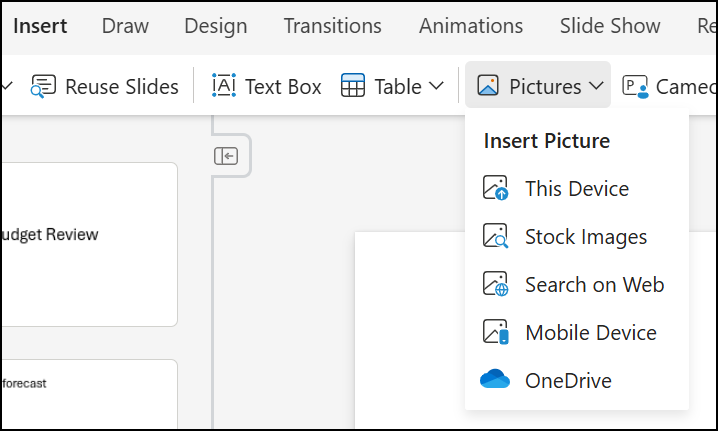
- Find the picture of the Excel chart, and then click Open.
- Once you add the picture, you can also do the following:
Crop a picture in Office
Add a border or another style to a picture