You can change the appearance of tables in your PowerPoint presentation by combining or splitting table cells.
If you want to delete an entire row or column of a table, see Add or delete table rows and columns.
Merge table cells
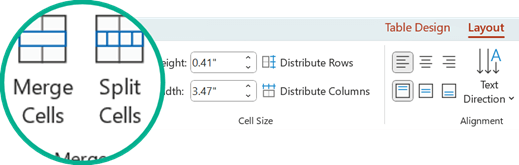
To combine two or more table cells in the same row or column into a single cell, do the following:
On the slide, select the cells that you want to combine.
Tip
It is not possible to select multiple, noncontiguous cells.
On the ribbon, select the Layout tab.
In the Merge group, click Merge Cells.
Tip
You can also erase cell borders to merge table cells. Under Table Tools, on the Design tab, in the Draw Borders group, click Eraser, and then click the cell borders that you want to erase. When you finish, press Esc.
Split table cells
To divide a table cell into more cells, do the following:
Click the table cell that you want to split.
On the ribbon, select the Layout tab.
In the Merge group, click Split Cells, and then do one or more of the following:
- To divide a cell vertically, in the Number of columns box, enter the number of new cells that you want.
- To divide a cell horizontally, in the Number of rows box, enter the number of new cells that you want.
- To divide a cell both horizontally and vertically, in the Number of columns box, enter the number of new columns that you want, and then in the Number of rows box, enter the number of new rows that you want.
Manually move or add content to the newly created empty cell or cells.
Why split or merged cells are an accessibility issue
Screen readers keep track of their location in a table by counting table cells. If a cell is merged or split, or if a table is nested within another table, the screen reader loses count and can’t provide helpful information about the table after that point.
Blank cells in a table could also mislead someone using a screen reader into thinking that there is no more data in the table. Use a simple table structure for data only and include column headers, if appropriate. (Screen readers also use header information to identify rows and columns.)
Split the contents of a table over two slides
PowerPoint can't automatically split a table that's too long to fit on one slide, but it's a straightforward process to do it yourself:
1:21
Remove the content of a cell
Merge table cells
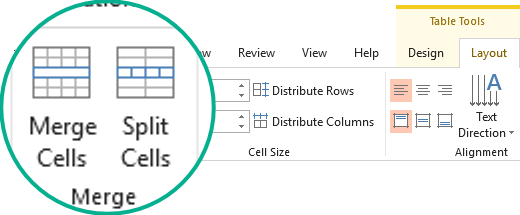
To combine two or more table cells in the same row or column into a single cell, do the following:
On the slide, select the cells that you want to combine.
Tip
It is not possible to select multiple, noncontiguous cells.
On the ribbon, select the Layout tab.
In the Merge group, click Merge Cells.
Tip
You can also erase cell borders to merge table cells. Under Table Tools, on the Design tab, in the Draw Borders group, click Eraser, and then click the cell borders that you want to erase. When you finish, press Esc.
Split table cells
To divide a table cell into more cells, do the following:
Click the table cell that you want to split.
On the ribbon, select the Layout tab.
In the Merge group, click Split Cells, and then do one or more of the following:
- To divide a cell vertically, in the Number of columns box, enter the number of new cells that you want.
- To divide a cell horizontally, in the Number of rows box, enter the number of new cells that you want.
- To divide a cell both horizontally and vertically, in the Number of columns box, enter the number of new columns that you want, and then in the Number of rows box, enter the number of new rows that you want.
Manually move or add content to the newly created empty cell or cells.
Why split or merged cells are an accessibility issue
Screen readers keep track of their location in a table by counting table cells. If a cell is merged or split, or if a table is nested within another table, the screen reader loses count and can’t provide helpful information about the table after that point.
Blank cells in a table could also mislead someone using a screen reader into thinking that there is no more data in the table. Use a simple table structure for data only and include column headers, if appropriate. (Screen readers also use header information to identify rows and columns.)
Split the contents of a table over two slides
PowerPoint can't automatically split a table that's too long to fit on one slide, but it's a straightforward process to do it yourself:
1:21
Remove the content of a cell
Merge cells
- In the table, drag the pointer across the cells that you want to merge.
- On the ribbon, select the Table Layout tab.
- Select Merge Cells.

Split cells
In the table, click the cell that you want to split.
On the ribbon, select the Table Layout tab.
Select Split Cells.
In the Split Cells dialog, select the number of columns and rows that you want and then click Insert.
Manually move or add content to the newly created empty cell or cells.
Remove the content of a cell
Merge table cells
To combine two or more table cells in the same row or column into a single cell, do the following:
On the slide, select the cells that you want to combine.
Tip
It isn't possible to select multiple, noncontiguous cells.
Select the Table Layout (or just Table) tab, then select
 Merge.
(Alternatively, you can right-click the selected cells and choose
Merge.)
Split table cells
To divide a table cell into more cells, do the following:
Select the table cell or cells that you want to split.
Select the Table Layout (or just Table) tab, then select
 Split.
(Alternatively, you can right-click the selected cell or cells and choose
Split.)
Do one of the following:
- To divide a cell vertically, in the Number of columns box, enter the number of new cells that you want.
- To divide a cell horizontally, in the Number of rows box, enter the number of new cells that you want.
- To divide a cell both horizontally and vertically, in the Number of columns box, enter the number of new columns that you want, and then in the Number of rows box, enter the number of new rows that you want.
Manually move or add content to the newly created empty cell or cells.
Remove the contents of a cell
See Also
Add or delete table rows and columns in PowerPoint
Add a table to a slide
Merge and unmerge cells in Excel

