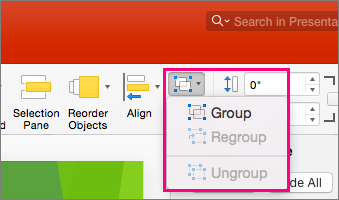
Use the Select options in the Editing group at the far right end of the Home tab to see and select individual objects in PowerPoint:

Click the object to select it. If that does not select it, on the Home tab, in the Editing group, click Select and do one of the following:
To select all of the objects and placeholders on the slide, click Select All.
To select objects that are hidden, stacked, or behind text, click Select Objects, and then click and drag over the objects.
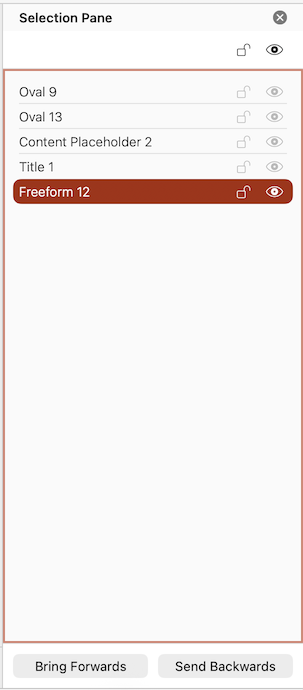
To open the Selection pane, where you can select, multi-select, show, hide, or change the order of objects, click Selection Pane, and then click the options that you want.
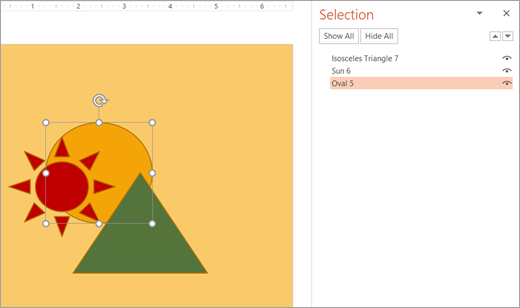
Figure: In this example, we can easily select the oval shape in the Selection pane, whereas on the slide, the oval is buried under the sun and triangle shapes.
After you have selected the object, you can apply PowerPoint commands and features to that object as usual.
Open the Selection Pane any time: On the Home tab, select Arrange > Selection Pane.
Using the Selection Pane
Once you've inserted shapes, text boxes, SmartArt graphics, images, or other objects, you can open the Selection Pane to keep track of them all.
Select one of the objects you want to manage.
Select the ... Format tab that appears on the ribbon when you select the object, and then choose Selection Pane (or Arrange > Selection Pane).

The Selection Pane opens with all your objects listed, and you can do any of the following:
The Selection pane lets you view and select individual elements on a slide, show or hide items, or re-order them. Double-click an item in the pane to rename it.
Open the Selection pane
On the Classic ribbon:
- Go to Home >
 Arrange > Selection Pane.
On the Single-Line ribbon:
- Go to Home >
Arrange > Selection Pane.
If the Arrange button isn't visible, select the three-dot (...) More button at the far right end. Then, under More Drawing Options, select Arrange > Selection Pane.
Rearrange items by using the selection pane
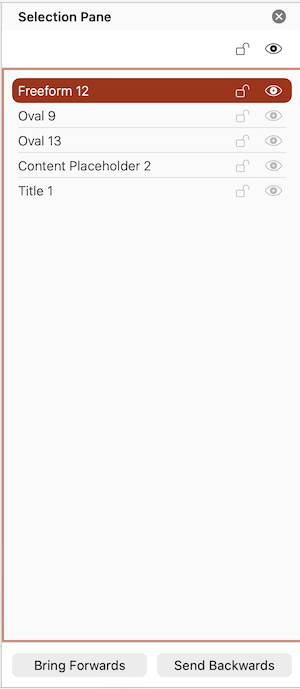
Items in the pane are listed in layer order. The top item is on the the top layer.
Drag an item up or down in the list to change the order.
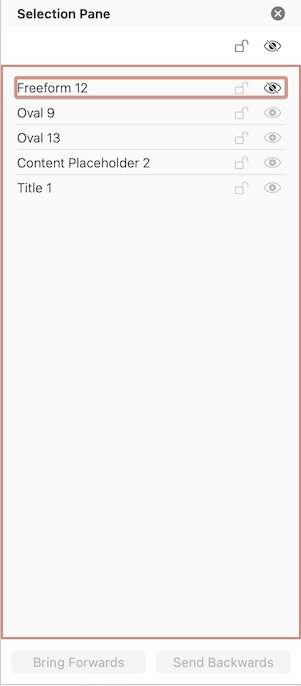
Show or hide items
Use an item's eye symbol on the right side of the pane to determine whether it is shown or hidden on the slide: