
The ribbon shows the actions available on each tab on your screen. While the ribbon is very useful when you are editing your presentation, you might want to minimize or hide the ribbon to increase screen space when you are reading or reviewing it.
On your Android tablet or phone
- On an Android tablet, you can show or hide the ribbon by tapping the up and down arrows.
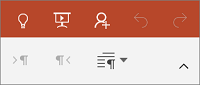
- To show the ribbon on an Android phone, tap the Edit icon
 or the up arrow
 .
. - To hide the ribbon on an Android phone, tap the down arrow
 .
.
On your iPad or iPhone
- To show or hide the ribbon on an iPad, tap any tab (for example, tap Home).
- To show the ribbon on an iPhone, tap the Edit icon
 .
. - To hide the ribbon on an iPhone, tap the down arrow
 .
.
On your Windows tablet or phone
- To show or hide the ribbon on a Windows tablet when you're editing, tap any tab (for example, tap Home).
- To show or hide the ribbon on a Windows phone when you're editing, tap More
 .
.