Share your presentation
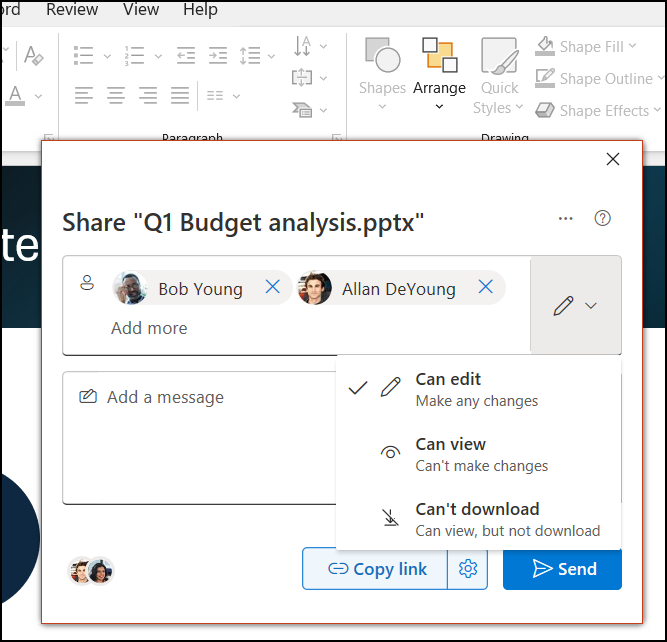
On the ribbon, select Share.
If your presentation isn't already saved to OneDrive, you'll be prompted to save it there.In the Send Link dialog box, do the following:
Enter the names or email addresses of the people you want to share with.
Select the drop-down to change permissions, if you want. Allow editing is checked by default. To change permission to view only, uncheck this box and select Apply.
Include a message if you'd like and select Send.
You can also select Get a link to create a link that you can copy into an email.
Co-author a presentation
After you share your file, you can work together at the same time.
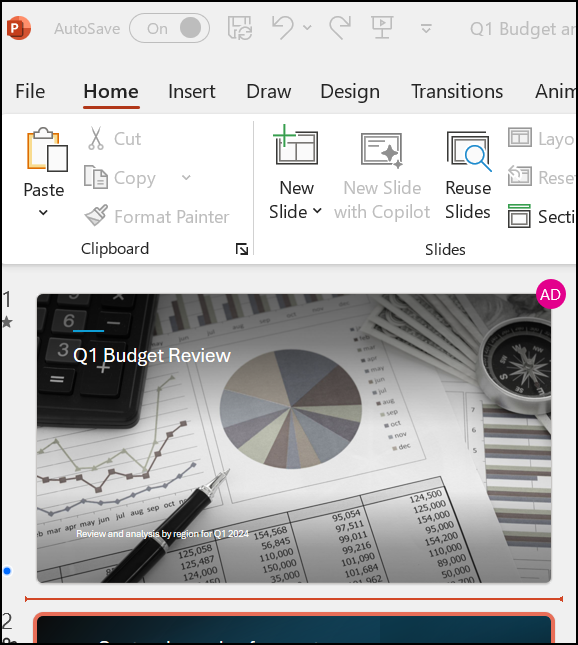
- Under Share, see who is also working in the file.
- Colored flags show where each person is editing.
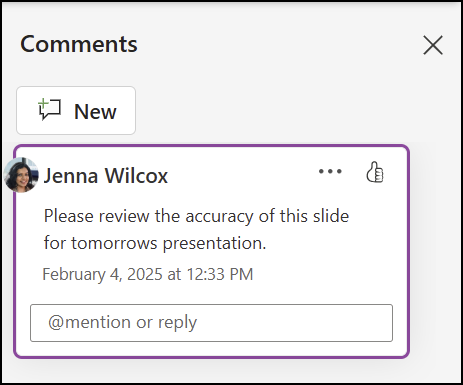
Comments in presentations
- Select Review > Comment or @ Mention. Or select New if the Comments pane is open.
- In the Comments pane, type your comment in the box, @mention a collaborator if you like, and press Enter.
- Select Reply and type your response.
- Select See more comments to go between comments and slides.