
Default button settings in PowerScribe One
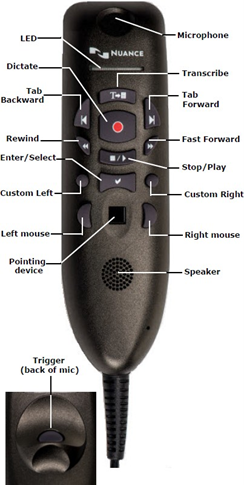
| Button | Default setting |
|---|---|
| LED | The LED turns on when you activate recording (for example, by pressing the Dictate button) and turns off when you stop recording. |
| Transcribe | Nothing: There is no default setting, however the button can be customized. |
| Dictate | Use deadman switch: The other option is Toggle dictation on/off, which may be preferred for Cloud Speech |
| Tab Backward | Previous field: Selects the previous field. |
| Tab Forward | Next field: Selects the next field. |
| Rewind | Use deadman switch: Press and hold to move backward in the audio playback. |
| Fast Forward | Use deadman switch: Press and hold to move forward in the audio playback. |
| Stop/Play | Deadman play audio: Press and hold to play back audio. |
| Enter/Select | Enter key: Same as pressing Enter key on your keyboard. |
| Custom Left | Nothing: There is no default setting, however the button can be customized. |
| Custom Right | Nothing: There is no default setting, however the button can be customized. |
| Left/Rt mouse | Left mouse: Nothing Right mouse: Nothing Note: There are no default settings, however the buttons can be customized. |
| Pointing device | Use to position the mouse insertion point and select objects. |
| Trigger | Nothing (Located on back of microphone.): There is no default setting, however the button can be customized. |
To customize your PowerMic III settings, select Preferences > Devices > PowerMic.
The following table shows the programmable buttons on PowerMic and all possible actions you can assign to each button.
| Devices preference | Action/Settings | Action/Settings |
|---|---|---|
| DICTATE button | Toggle dictation on off Use deadman switch |
|
| STOP/PLAY button | Nothing Delete Key Delete last word |
Delete Last Utterance Toggle play audio on off Deadman play audio |
| REWIND button | Toggle rewind on off Previous field |
Use deadman switch Select backward |
| FAST FORWARD button | Toggle fast forward on off Next field |
Use deadman switch Select forward |
| TAB BACKWARD button, CUSTOM LEFT button, MOUSE LEFT CLICK |
Nothing Previous field Sign report New line New paragraph Delete key Delete last word Delete last utterance Select backward Save as draft |
Enter key Backspace Correct report STAT Previous discrepancy Sign as preliminary Overread report Overread and prelim End of line End of report Exit field |
| TAB FORWARD button, CUSTOM RIGHT button, MOUSE right-click |
Nothing Next field Sign report New line New paragraph Delete key Delete last word Delete last utterance Select forward Save as draft |
Enter key Backspace Correct report STAT Next discrepancy Sign as preliminary Overread report Overread and prelim End of line End of report Exit field |
| TRANSCRIBE button, ENTER/SELECT button, TRIGGER (on back of mic) |
Nothing Sign report New line New paragraph Delete key Delete last word Delete last utterance Toggle visibility Save as draft |
Enter key Backspace Correct report STAT Sign as preliminary Overread report Overread and prelim End of line End of report Exit field |