The timeline at the top of the Project Center provides a simple way to show all of the projects and major tasks going on in your organization. You can use this timeline to craft a visual executive summary of your portfolio of projects.
Note
In addition to Project Center, adding tasks to the Schedule page timeline is another option available in Project Web App.
On the Quick Launch, click Projects.

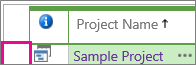
Click anywhere on the timeline you wish to add a project to, and then click the row header for the desired project.
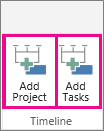
On the Projects tab, in the Timeline group, click Add Project or Add Tasks.
If you are just adding a project, continue to step 4, but if you are adding tasks, select the task row(s) that you want to add to the timeline, and then click OK.

Tip
Don’t see the task you wanted to add? Try expanding the summary tasks in the Task Name column to drill down to the subtask level(s).
To add another timeline, click the current timeline, and then click Add in the Timeline Bar group on the Timeline tab.
Note
Multiple timelines are available in Project Online and Project Server 2016.

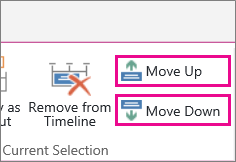
To move projects between timelines, click the project, and then click Move Up or Move Down in the Current Selection group on the Timeline tab.