
In Publisher, you can create hyperlinks to files, webpages, email addresses, other pages in a web publication, and specific locations on webpages (sometimes called bookmarks) by using the Hyperlink button on the Insert tab.
Create a hyperlink to a location on the web
Select the text or picture that you want to display as a hyperlink.
On the Insert tab, click Hyperlink.

You can also right-click the text or picture and click Hyperlink on the shortcut menu.In the Insert Hyperlink box, type or paste your link in the Address box.
Note
- If you don't see the Address box, make sure Existing File or Web Page is selected under Link to.
- If you don't know the address for your hyperlink, click Browse the Web
 to locate the URL on the Internet and copy it.
Tip
To follow a hyperlink from a web publication before you publish it to the web, hold down CTRL while you click the linked text or picture.
Create a hyperlink to a file on your computer
You can add a hyperlink to a file on your computer, or to a new file that you want to create on your computer.
Select the text or picture that you want to display as a hyperlink.
On the Insert tab, click Hyperlink.
Under Link to, do one of the following:
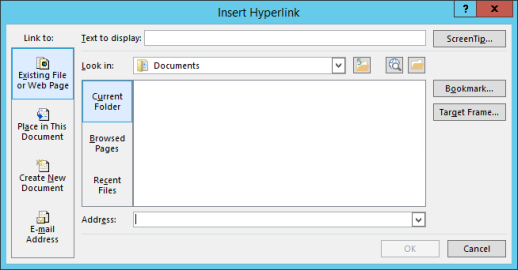
- To link to an existing file, click Existing File or Web Page under Link to, and then navigate to the file from the Look in list or the Current Folder list.
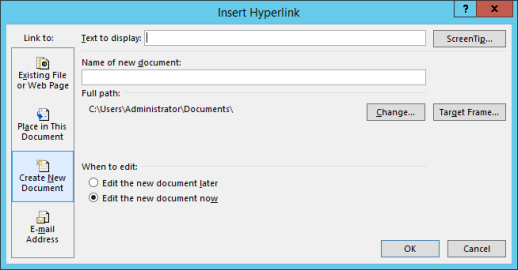
- To create a new, blank file and link to it, click Create New Document under Link to, type a name for the new file, and either use the location shown under Full path or browse to a different save location by clicking Change. You can also choose whether to Edit the new document later or open and Edit the new document now.
- To link to an existing file, click Existing File or Web Page under Link to, and then navigate to the file from the Look in list or the Current Folder list.
Tip
To follow a hyperlink, hold down CTRL while you click the linked text or picture.
Create a hyperlink to a new email message
Select the text or picture that you want to display as a hyperlink.
On the Insert tab, click Hyperlink
.
You can also right-click the text or picture and click Hyperlink on the shortcut menu.Under Link to, click E-mail Address.
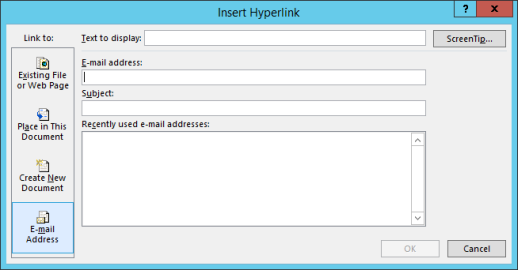
Either type the email address that you want in the E-mail address box, or select an address in the Recently used e-mail addresses list.
In the Subject box, type the subject of the message.
Note
Some web browsers and email programs might not recognize the subject line.
Tip
To follow a hyperlink from a web publication before you publish it to the web, hold down CTRL while you click the linked text or picture.
Create a hyperlink to another page in your publication
- Select the text or picture that you want to display as a hyperlink.
- On the Insert tab, click Hyperlink
.
You can also right-click the text or picture and click Hyperlink on the shortcut menu. - Under Link to, click Place in This Document.
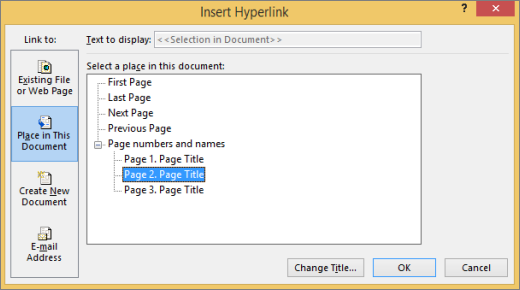
- Select the page that you want.
Tip
To follow a hyperlink from a web publication before you publish it to the web, hold down CTRL while you click the linked text or picture.