
You can print a brochure yourself, especially if you have access to a good photocopier. Or you can use the Pack and Go wizard in Publisher 2013 to send your brochure to a commercial printer. See Printing: Choose between desktop, copy shop, and commercial printing if you’re not sure which method to use.
Print a single copy of your brochure
- From your brochure template, click File > Print.
- Choose the correct printer.
- Under Settings, make sure you are printing one page per sheet, have chosen the correct paper size, and are printing on both sides of the paper.
- Click the Print button at the top of the screen.
Create a brochure file for commercial printing
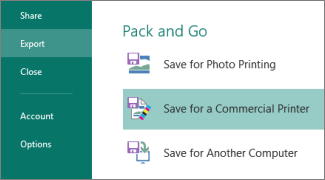
- From your brochure template, click File > Export.
- Under Pack and Go, click Save for a Commercial Printer.
- Click the arrow and click Commercial Press.
- Click Both PDF and Publisher .pub files.
- Click Pack and Go Wizard and save the files.
- Send the PDF and .pub files to your commercial printer.