
Print postcards on a printer that prints two-sided (duplex)
To print on both sides of a sheet of paper, do the following:
- Click the File > Print.
- In the Printer list, select the printer you want to use.
- In Settings, choose Print on Both Sides – Flip sheets on long edge.
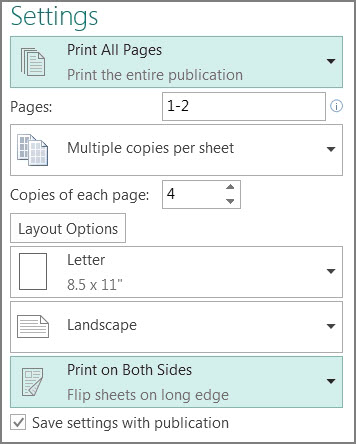
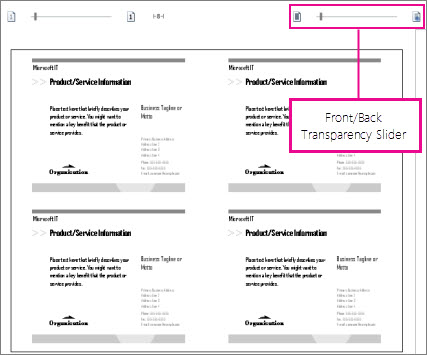
- In the Preview pane, use the Front/Back Transparency slider to be sure that the front and the back of the postcards are both right side up. If they aren’t, then change the option in step 3 to Print on Both Sides – Flip sheets on short edge
Print a publication on a printer that doesn’t support two-sided printing
- Click the File > Print.
- In the Printer list, select the printer you want to use.
- Print the first page by typing 1 in the pages box and clicking Print.
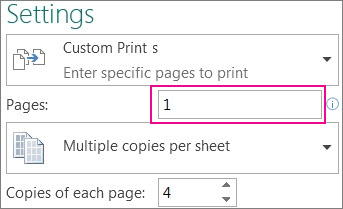
- When the first side is printed, flip the sheet over, and then reinsert it into the printer and print the other side by typing 2 in the pages box.
Note
If your printer does not support double-sided printing, and if you're using mail merge to merge address or other information into your publication, then you need to create two separate Publisher files, one for each side of the publication, before you print.