

Important
After October 2026, Microsoft Publisher will no longer be supported. Microsoft 365 subscribers will no longer have access. Learn more about Publisher retirement.
If you created a publication that you want to share with others who don't have Publisher, you can save it as a PDF (Portable Document Format) or XPS (XML Paper Specification) file. Commercial printers often prefer to receive a PDF file for printing.
Save your publication in PDF or XPS format
Choose PDF if you want to save your publication in a format that can be easily shared and is used by many commercial printers. Choose XPS if you want to save your publication with even greater compression than PDF format. Read more about PDF and XPS formats.
- Click File > Export > Create PDF/XPS Document > Create PDF/XPS.
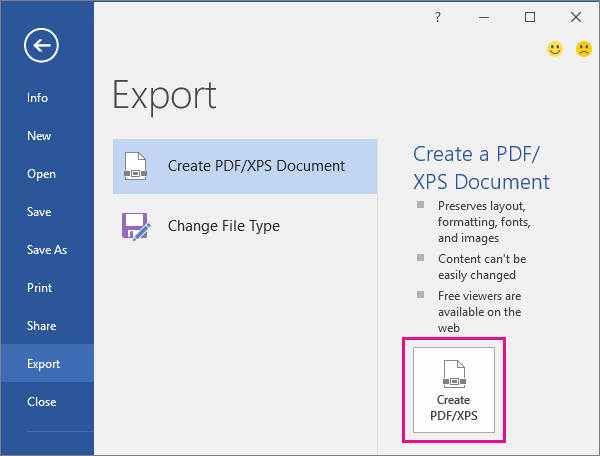
- For File name, type a name for the publication.
- For Save as type, select either PDF or X PS Document.
- Click Options and choose the publish option best for online or print viewing of your publication:
Minimum Size Use this option for online viewing as a single page
Standard Use this option for online distribution such as email when a recipient might print the publication on a desktop printer
High Quality Printing Use this option for either desktop or copy shop printing
Commercial Press This option creates the largest and highest quality files for commercial printing
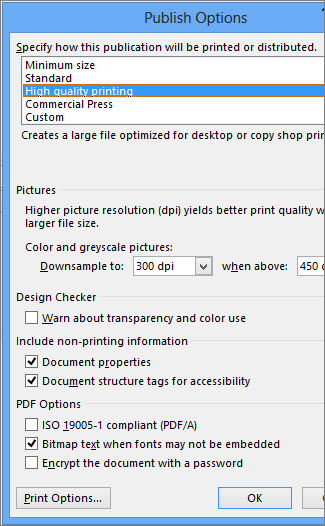
- Click OK, and click Publish.
About PDF and XPS formats
Both file formats are designed to provide read-only documents with optimal printing qualities. They also embed all needed fonts, preserve metadata, and can include hyperlinks.
The recipients need the appropriate viewer for the file format before they can view your files.
Note
These formats provide a way for others to view your publication only. The resulting files cannot be changed in Publisher.
| File format | Advantages | Notes |
|---|---|---|
| PDF (.pdf) |
|
Needs Adobe Acrobat Reader. |
| XPS (.xps) |
|
Needs the correct viewer, available as a downloadable add-in from Microsoft. |