
Microsoft has discovered a vulnerability in Office Visual Basic for Applications (VBA) macro project signing. This vulnerability might enable a malicious user to tamper with a signed VBA project without invalidating its digital signature. Therefore, we recommend that users apply the security updates that are listed in Microsoft Common Vulnerabilities and Exposures CVE-2020-0760.
To enhance the security of the Office VBA macro project signing, Microsoft provides a more secure version of VBA project signature scheme: V3 signature. The V3 signature is available in the following products:
Microsoft 365 version 2102 (build 16.0.13801.20266) and later versions of the current channel
Volume-licensed versions of Office 2019 version 1808 (build 10372.20060) and later versions
Retail versions of Office 2016 Click-to-Run editions and Office 2019 version 2102 (build 16.0.13801.20266) and later versions
Microsoft Installer (.msi)-based editions of Office 2016 that have the following updates or later versions of updates:
- December 1, 2020, update for Office 2016 (KB4486747)
- Description of the security update for Excel 2016: December 8, 2020 (KB4486754)
- Description of the security update for PowerPoint 2016: December 8, 2020 (KB4484393)
- December 1, 2020, update for Project 2016 (KB4486749)
- December 1, 2020, update for Publisher 2016 (KB4484334)
- December 1, 2020, update for Visio 2016 (KB4486709)
- December 1, 2020, update for Word 2016 (KB4486756)
- March 2, 2021, update for Access 2016 (KB4493188)
- March 2, 2021, update for Office 2016 (KB4493153)
- Description of the security update for Office 2016: March 9, 2021 (KB4493225)
We recommend that organizations apply the V3 signature to all macros to eliminate the risk of tampering.
By default, to ensure backward compatibility, VBA files that have existing signatures will continue to work, and files that are signed by using the V3 signature can be opened and run in earlier versions of Office or in non-updated Office clients. However, we recommend that admins upgrade the existing VBA signatures to the V3 signature as soon as possible after they upgrade Office to the listed versions. After admins verify that there is no compatibility loss to the organization, they can disable the old VBA signatures by enabling the Only trust VBA macros that use V3 signatures policy setting. For more information about this policy setting, see the "Enable policy setting: Only trust VBA macros that use V3 signatures" section.
Upgrade signed VBA files to the V3 signature
Admins can use the following topics to upgrade existing VBA signatures files to the V3 signature.
Use VBA Editor to re-sign VBA files
If you have private certificates, use the Visual Basic for Applications (VBA) Editor that's provided in an Office application to re-sign the VBA files.
To re-sign a VBA file, press Alt+F11 from within the file to open the VBA Editor.
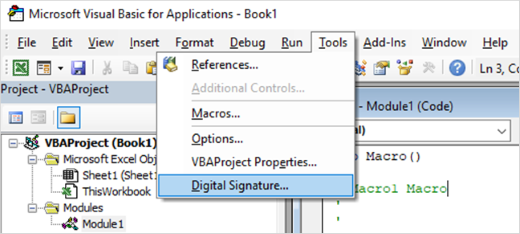
To replace an existing signature with the V3 signature, select Tools > Digital Signature. The Digital Signature dialog box opens.
Note
To sign a VBA project, the private key must be correctly installed. For more information, see Digitally sign your macro project.
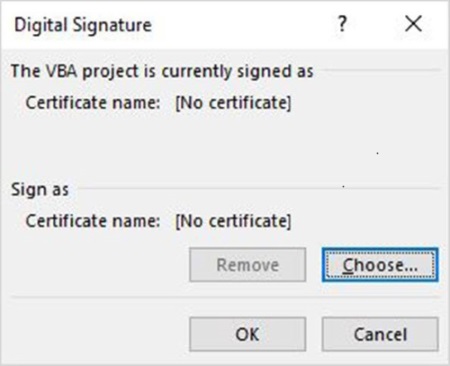
Select Choose to choose the certificate private key to use to sign the VBA project, and then select OK.
To generate the new signatures, save the file again. The new digital signatures will replace the previous signatures.
Use SignTool to re-sign VBA files
SignTool in the Windows 10 SDK can help you re-sign the VBA files through a command line. To batch the re-signing work against the inventory list that's identified in the "Create an inventory of signed VBA files" section, you can integrate SignTool into your own admin tools.
Note
Currently, SignTool doesn't support Microsoft Access.
To re-sign VBA files by using SignTool, follow these steps:
- Download and install the Windows 10 SDK.
- Download Officesips.exe from Microsoft Office Subject Interface Packages for Digitally Signing VBA Projects.
- To sign files and verify the signatures in files, register Msosip.dll and Msosipx.dll, and then run Offsign.bat. The detailed steps are included in the Readme.txt file in the installation folder of Officesips.exe.
Note
Use the x86 version of SignTool in the "C:\Program Files (x86)\Windows Kits\10\bin\10.0.18362.0\x86" folder when you run Offsign.bat.
Enable policy setting: "Only trust VBA macros that use V3 signatures"
After you complete the upgrade to the V3 signatures, we recommend that you enable the Only trust VBA macros that use V3 signatures policy setting to make sure that only V3 signature-signed files are trusted.
This policy setting is available in Group Policy or the Office Cloud Policy Service. It is located in User Configuration\Policies\Administrative Templates\Microsoft Office 2016\Security Settings\Trust Center. If this setting is enabled, only the V3 signature will be considered as valid when Office validates the digital signature in files. Earlier-format signatures in VBA files will be ignored.