
Note
Notice
This update is no longer available. To fix the issues that are described in this article, install the latest Microsoft Office update from the following Microsoft Learn article:
Latest updates for versions of Office that use Windows Installer (MSI)
Note
Notice - Korean Skype for Business
Characters in Korean Skype for Business are unidentifiable after this update is installed. To fix this issue, you may uninstall the update following the instructions below. This update is no longer available for download.
This article describes update 4011224 for Microsoft Office 2016 that was released on November 7, 2017. This update has a prerequisite.
Be aware that the update in the Microsoft Download Center applies to the Microsoft Installer (.msi)-based edition of Office 2016. It doesn't apply to the Office 2016 Click-to-Run editions, such as Microsoft Office 365 Home. (How to determine?)
Improvements and fixes
This update fixes an issue in which some DBCS symbols and characters are displayed incorrectly.
Update information
Prerequisites
To apply this update, you must have Microsoft Office 2016 installed.
Restart information
You may have to restart the computer after you install this update.
More information
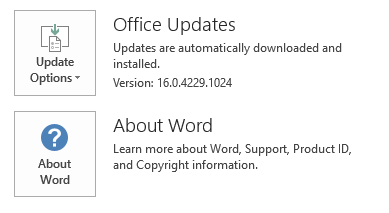
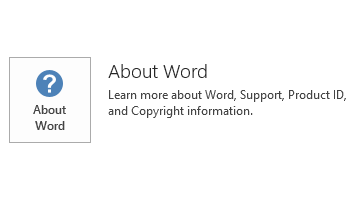
To determine whether your Office installation is Click-to-Run or MSI-based, follow these steps:
- Start an Office 2016 application.
- On the File menu, select Account.
- For Office 2016 Click-to-Run installations, an Update Options item is displayed. For MSI-based installations, the Update Options item isn't displayed.
| Office 2016 Click-to-Run installation | MSI-based Office 2016 |
|---|---|
|
|
How to uninstall this update
Windows 10
- Go to Start, enter View Installed Updates in the Search Windows box, and then press Enter.
- In the list of updates, locate and select KB4011224, and then select Uninstall.
Windows 8 and Windows 8.1
- Swipe in from the right edge of the screen, and then select Search. If you're using a mouse, point to the lower-right corner of the screen, and then select Search.
- Enter windows update, select Windows Update, and then select Installed Updates.
- In the list of updates, locate and select KB4011224, and then select Uninstall.
Windows 7
- Go to Start, enter Run, and then select Run.
- Enter Appwiz.cpl, and then select OK.
- Select View installed updates.
- In the list of updates, locate and select KB4011224, and then select Uninstall.
References
Learn about the standard terminology that's used to describe Microsoft software updates.
The Office System TechCenter contains the latest administrative updates and strategic deployment resources for all versions of Office.
File information
The English (United States) version of this software update installs files that have the attributes that are listed in the following tables. The dates and the times for these files are listed in Coordinated Universal Time (UTC). The dates and the times for these files on your local computer are displayed in your local time together with your current daylight saving time (DST) bias. Additionally, the dates and the times may change when you perform certain operations on the files.
x64
| File name | File version | File size | Date | Time | Platform |
|---|---|---|---|---|---|
| Riched20.dll_0001 | 16.0.4606.1000 | 2,244,280 | 17-Oct-2017 | 08:31 | Not applicable |
x86
| File name | File version | File size | Date | Time | Platform |
|---|---|---|---|---|---|
| Riched20.dll_0001 | 16.0.4606.1000 | 1,716,920 | 17-Oct-2017 | 08:25 | Not applicable |