
This article describes update KB3115105 for Microsoft Project 2016, which was released on May 3, 2016. This update has a prerequisite.
Be aware that the update on the Microsoft Download Center applies to the Microsoft Installer (.msi)-based edition of Office 2016. It doesn't apply to the Office 2016 Click-to-Run editions, such as Microsoft Office 365 Home. (How to determine?)
Improvements and fixes
A better translation of the following messages is now available for the Japanese language. These messages appear when a user tries to edit the name of an enterprise resource within their project:
- Changes to enterprise resources will be lost.
- You can modify an enterprise resource in a project for modeling purposes and publishing the project will include any changes. Your changes will be overwritten when the project is next opened.
A user with security permission can modify the attributes of this resource by checking out the resource with the Open Enterprise Resource Pool command.
Fixes the following issues:
Assume that you use a task template that has cost resources assigned to create a project in Project Web App. When you open the project in Project 2016, Project 2016 crashes.
In some cases, a task's % Complete displays 99% even though the % Work Complete on all the assignments on the task shows 100%.
When you apply a group to a checked-out enterprise view in Project 2016, Project 2016 may crash.
Consider the following scenario:
- You have an enterprise resource that's assigned to a project.
- You change the booking type for the resource.
- You save and then open the project again.
In this situation, the booking type property isn't saved.
The ZoomTimescale Visual Basic Applications method ignores the duration parameter for the Timeline view in Project 2016. Therefore, you can't force the timeline view to zoom to a specific range.
Consider the following scenario:
- A team member is assigned to a task that begins on Monday.
- The task is published to the team member.
- The team member opens their timesheet and enters actual work on Wednesday.
- The team member submits their timesheet.
- The project manager approves the status update from the team member.
In this situation, the task still shows that it begins on Monday instead of Wednesday.
When a summary task is viewed in the task inspector, the subtasks aren't listed.
Consider the following scenario:
- A user enters time phased actual work on an assignment and submits the work for approval.
- The status manager approves the update.
- The user changes the assignment start date and then submits the change.
- The status manager approves the update.
In this scenario, the time phased actual work may move to another date.
If you use the Assign Resources dialog box to replace one resource with another resource, the total work value displayed in the Resource Usage view isn't always updated correctly.
Setting actual cost for cost assignments on tasks doesn't always calculate the correct progress as expected. This issue occurs when the assignment is the only resource on the task.
When you delete a resource from a split task, the split task is deleted unexpectedly.
When you import a project from an XML file, timephased baseline work isn't imported correctly. For example, on an assignment, the baseline cost values over a 10-day period are as follows:
2h, 3h, 4h, 5h, 6h, 8h, 8h, 8h, 8h, 8h. When it's imported, the values change to 2h, 6h, 6h, 6h, 6h, 6h, 6h, 6h, 6h.
How to download and install the update
Microsoft Update
Use Microsoft Update to automatically download and install the update.
Download Center
This update is also available for manual download and installation from the Microsoft Download Center.
-
 Download update KB3115105 for 32-bit version of Project 2016
 -
Download update KB3115105 for 64-bit version of Project 2016
If you're not sure what platform (32-bit or 64-bit) you're running, see Am I running 32-bit or 64-bit Office? Additionally, see more information about how to download Microsoft support files.
Virus-scan claim
Microsoft scanned this file for viruses by using the most current virus-detection software that was available on the date that the file was posted. The file is stored on security-enhanced servers that help prevent any unauthorized changes to it.
Update information
PrerequisiteTo apply this update, you must have Microsoft Project 2016 installed.
Restart informationYou may have to restart the computer after you install this update.
More Information
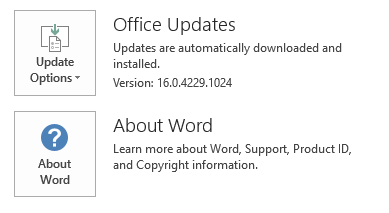
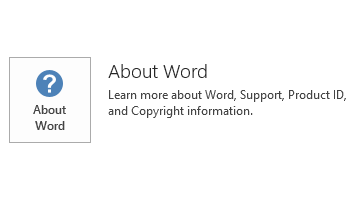
To determine whether your Office installation is Click-to-Run or MSI-based, follow these steps:
- Start an Office 2016 application.
- On the File menu, select Account.
- For Office 2016 Click-to-Run installations, an Update Options item is displayed. For MSI-based installations, the Update Options item isn't displayed.
| Office 2016 Click-to-Run installation | MSI-based Office 2016 |
|---|---|
|
|
How to uninstall this update
Windows 10
- Go to Start, enter View Installed Updates in the Search Windows box, and then press Enter.
- In the list of updates, locate and select KB3115105, and then select Uninstall.
Windows 8 and Windows 8.1
- Swipe in from the right edge of the screen, and then select Search. If you're using a mouse, point to the lower-right corner of the screen, and then select Search.
- Enter windows update, select Windows Update, and then select Installed Updates.
- In the list of updates, locate and select KB3115105, and then select Uninstall.
Windows 7
- Go to Start, enter Run, and then select Run.
- Enter Appwiz.cpl, and then select OK.
- Select View installed updates.
- In the list of updates, locate and select KB3115105, and then select Uninstall.
References
Learn about the standard terminology that's used to describe Microsoft software updates. The Office System TechCenter contains the latest administrative updates and strategic deployment resources for all versions of Office.
File Information
The global version of this update has the file attributes (or later file attributes) that are listed in the following table.
x64
project-x-none.msp file information
| File identifier | File name | File version | File size | Date | Time |
|---|---|---|---|---|---|
| Nameext.dll.x64 | Nameext.dll | 16.0.4339.1000 | 320,768 | 12-Apr-2016 | 07:04 |
| Nameext.dll.x86 | Nameext.dll | 16.0.4339.1000 | 286,976 | 12-Apr-2016 | 07:05 |
| Pjintl.dll_1033 | Pjintl.dll | 16.0.4378.1000 | 4,402,952 | 13-Apr-2016 | 17:30 |
| Winproj.exe | Winproj.exe | 16.0.4378.1000 | 30,484,168 | 13-Apr-2016 | 17:44 |
x86
project-x-none.msp file information
| File identifier | File name | File version | File size | Date | Time |
|---|---|---|---|---|---|
| Nameext.dll.x64 | Nameext.dll | 16.0.4339.1000 | 320,768 | 12-Apr-2016 | 06:56 |
| Nameext.dll.x86 | Nameext.dll | 16.0.4339.1000 | 286,976 | 12-Apr-2016 | 06:55 |
| Pjintl.dll_1033 | Pjintl.dll | 16.0.4378.1000 | 4,377,872 | 13-Apr-2016 | 17:43 |
| Winproj.exe | Winproj.exe | 16.0.4378.1000 | 24,195,272 | 13-Apr-2016 | 17:43 |