
Original publish date: November 3, 2026
KB ID: 5134574
Depending on your Windows version, a 2026 update adds version information to the Windows PowerShell and Windows PowerShell ISE labels. For details, see Impacted platforms. On existing devices, some Start menu shortcuts might keep their previous names after the update.
This article explains the naming change, what existing users see, and the optional action to recreate the two affected console shortcuts.
Impacted platforms
This change applies to the October 2026 preview update for Windows 11, versions 25H2 and 26H2 (KB5127936), and Windows 11, version 26H1 (KB5127653). It also applies to Windows 11, version 24H2 and Windows 11 Enterprise LTSC 2024 in the November 2026 security update.
How this affects you
This applies to existing devices that install the update for their Windows version. For details, see Impacted platforms.
After you install the update, the Windows PowerShell and Windows PowerShell ISE labels include version 5.1.
On existing devices, two user-specific Windows PowerShell console shortcuts might keep their previous names. These shortcuts don't update to the new names automatically.
An older shortcut name alone doesn't mean the update failed to install.
Windows PowerShell stays in its existing location. Recreating the shortcuts doesn't move or reinstall Windows PowerShell.
Affected shortcuts
The optional recreation procedure updates the names of the following two Windows PowerShell console shortcuts:
| Existing shortcut name | Name after optional shortcut recreation |
|---|---|
| Windows PowerShell | Windows PowerShell 5.1 |
| Windows PowerShell (x86) | Windows PowerShell 5.1 (x86) |
Before the update:
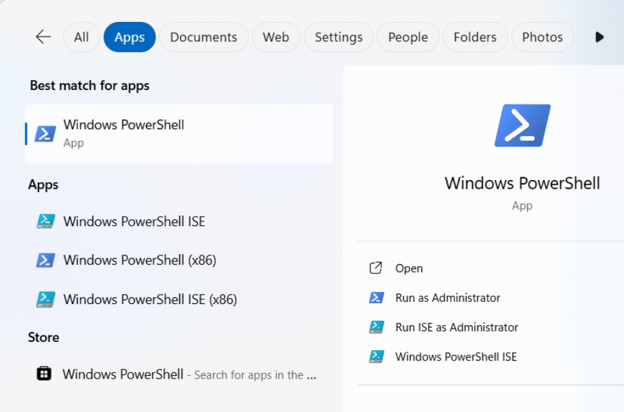
Start menu search results showing Windows PowerShell, Windows PowerShell (x86), Windows PowerShell ISE, and Windows PowerShell ISE (x86).
After the update:
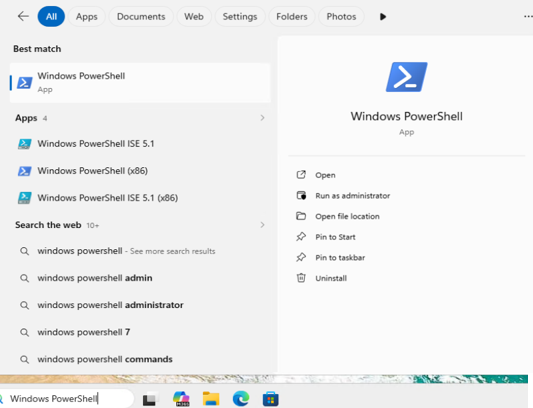
Start menu search results showing Windows PowerShell ISE 5.1 and Windows PowerShell ISE 5.1 (x86). The console shortcuts still show Windows PowerShell and Windows PowerShell (x86).
After you recreate the shortcuts
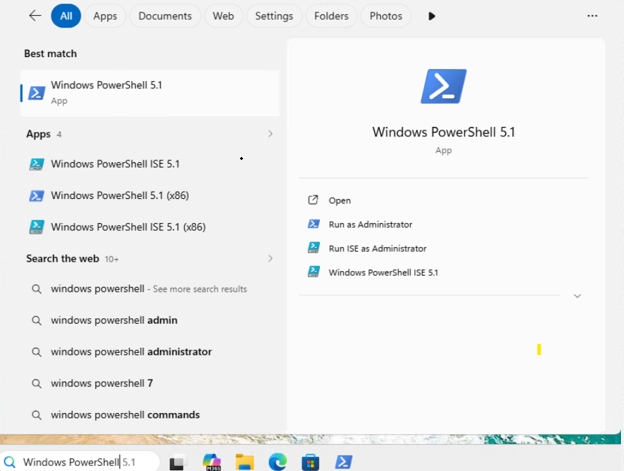
Start menu search results showing Windows PowerShell 5.1, Windows PowerShell 5.1 (x86), Windows PowerShell ISE 5.1, and Windows PowerShell ISE 5.1 (x86).
What you should do
Recreating the shortcuts is optional.
To have the two Windows PowerShell console shortcuts show version 5.1, back up the existing shortcuts and then recreate them by following the steps in this section.
You don't need to recreate the Windows PowerShell ISE shortcuts.
These steps apply to the shortcuts in your own user profile, in this folder:
"%APPDATA%\Microsoft\Windows\Start Menu\Programs\Windows PowerShell"
Updating these user-specific shortcuts in the AppData folder is a one-time action for each user and doesn't require administrator permissions. Updating shortcuts in the all-users ProgramData folder requires administrator permissions.
Recreate the Windows PowerShell shortcuts
Each step includes a scripted method and a manual method. Both produce the same result.
Step 1: Confirm where the shortcuts are
Scripted
\$dir = "\$env:APPDATA\Microsoft\Windows\Start Menu\Programs\Windows PowerShell"
if (Test-Path -LiteralPath \$dir) {
Get-ChildItem -LiteralPath \$dir -Filter \*.lnk \| ForEach-Object {
\$s = (New-Object -ComObject WScript.Shell).CreateShortcut(\$\_.FullName)
"{0} -\> {1}" -f \$\_.Name, \$s.TargetPath
}
} else { "Not found in %APPDATA% — check C:\ProgramData\Microsoft\Windows\Start Menu\Programs\Windows PowerShell (All Users, needs an elevated shell)." }
Manual
Open File Explorer, paste %APPDATA%\Microsoft\Windows\Start Menu\Programs\Windows PowerShell into the address bar, and then press Enter.
Confirm that you see the Windows PowerShell and Windows PowerShell (x86) shortcuts.
If the shortcuts aren't in this folder, they might be in the all-users folder: %ProgramData%\Microsoft\Windows\Start Menu\Programs\Windows PowerShell. In that case, use that path for the rest of the steps, and run them with administrator permissions.
Step 2: Back up the existing shortcuts (recommended)
Scripted
\$dir = "\$env:APPDATA\Microsoft\Windows\Start Menu\Programs\Windows PowerShell"
\$backup = "\$dir.bak-\$(Get-Date -Format yyyyMMdd-HHmmss)"
Copy-Item -LiteralPath \$dir -Destination \$backup -Recurse -Force
"Backed up to: \$backup"
Manual
In the Windows PowerShell folder, select both shortcuts, and then select Copy.
Go up one level to the Programs folder, create a new folder named Windows PowerShell.bak, and then paste the two shortcuts into it.
Step 3: Delete the existing shortcuts
Scripted
\$dir = "\$env:APPDATA\Microsoft\Windows\Start Menu\Programs\Windows PowerShell"
foreach (\$n in @("Windows PowerShell.lnk","Windows PowerShell (x86).lnk")) {
\$p = Join-Path \$dir \$n
if (Test-Path -LiteralPath \$p) { Remove-Item -LiteralPath \$p -Force; "Deleted: \$p" }
}
Manual
In the Windows PowerShell folder, delete the Windows PowerShell and Windows PowerShell (x86) shortcuts.
Step 4: Create the renamed shortcuts
Scripted
\$dir = "\$env:APPDATA\Microsoft\Windows\Start Menu\Programs\Windows PowerShell"
New-Item -ItemType Directory -Path \$dir -Force \| Out-Null

\$targets = @{
"Windows PowerShell 5.1.lnk" = "C:\Windows\System32\WindowsPowerShell\v1.0\powershell.exe"
"Windows PowerShell 5.1 (x86).lnk" = "C:\Windows\SysWOW64\WindowsPowerShell\v1.0\powershell.exe"
}

\$wsh = New-Object -ComObject WScript.Shell
foreach (\$n in \$targets.Keys) {
\$p = Join-Path \$dir \$n
if (Test-Path -LiteralPath \$p) { Remove-Item -LiteralPath \$p -Force }
\$lnk = \$wsh.CreateShortcut(\$p)
\$lnk.TargetPath = \$targets\[\$n\]
\$lnk.IconLocation = "\$(\$targets\[\$n\]),0"
\$lnk.Save()
"Created: \$p"
}
Manual (64-bit)
In File Explorer, go to C:\Windows\System32\WindowsPowerShell\v1.0\
Right-click powershell.exe, select Show more options, and then select Send to > Desktop (create shortcut).
On the desktop, rename the shortcut to Windows PowerShell 5.1.
Move the shortcut to %APPDATA%\Microsoft\Windows\Start Menu\Programs\Windows PowerShell.
Manual (32-bit, x86)
In File Explorer, go to C:\Windows\SysWOW64\WindowsPowerShell\v1.0\
Right-click powershell.exe, select Show more options, and then select Send to > Desktop (create shortcut).
On the desktop, rename the shortcut to Windows PowerShell 5.1 (x86).
Move the shortcut to %APPDATA%\Microsoft\Windows\Start Menu\Programs\Windows PowerShell.
Step 5: Verify the shortcuts
Scripted
\$dir = "\$env:APPDATA\Microsoft\Windows\Start Menu\Programs\Windows PowerShell"
\$sh = New-Object -ComObject Shell.Application
\$fld = \$sh.Namespace(\$dir)
Get-ChildItem -LiteralPath \$dir -Filter \*.lnk \| ForEach-Object {
\$s = (New-Object -ComObject WScript.Shell).CreateShortcut(\$\_.FullName)
\[PSCustomObject\]@{ File = \$\_.Name; DisplayName = \$fld.GetDetailsOf(\$fld.ParseName(\$\_.Name), 0); Target = \$s.TargetPath }
} \| Format-Table -AutoSize
Manual
Open the Start menu, and confirm that Windows PowerShell 5.1 and Windows PowerShell 5.1 (x86) appear and open correctly.
If the Start menu still shows the old names, restart Windows Explorer. In Task Manager, select Windows Explorer, and then select Restart. You can also run the following command. Explorer restarts automatically, and any open File Explorer windows close.
Stop-Process -Name explorer -Force
Restore the original shortcuts (optional)
If you want to go back to the original shortcut names, restore them from the backup that you created in Step 2.
Scripted
\$dir = "\$env:APPDATA\Microsoft\Windows\Start Menu\Programs\Windows PowerShell"
\$backup = Get-ChildItem "\$env:APPDATA\Microsoft\Windows\Start Menu\Programs" -Directory \`
-Filter "Windows PowerShell.bak-\*" \| Sort-Object Name -Descending \| Select-Object -First 1
Remove-Item -LiteralPath \$dir -Recurse -Force
Copy-Item -LiteralPath \$backup.FullName -Destination \$dir -Recurse -Force
"Restored from: \$(\$backup.FullName)"
Manual
In the Windows PowerShell folder, delete the two Windows PowerShell 5.1 shortcuts.
Copy the original shortcuts back from your Windows PowerShell.bak folder.
For IT admins: To roll this out across many devices, run Steps 3 and 4 once per user context through your existing deployment tool, such as Microsoft Intune or Configuration Manager.
Frequently asked questions (FAQ)
Q: Why do I still see the old names after installing the update?
The two existing, user-specific Windows PowerShell console shortcuts don't update to the new names automatically. This doesn't mean the update failed. If you want, you can recreate the shortcuts so that they show Windows PowerShell 5.1 and Windows PowerShell 5.1 (x86).
Q: Do I have to recreate the shortcuts?
No. Recreating the shortcuts is optional. Do it only if you want these two shortcuts to show version 5.1.
Q: Do I need to recreate the Windows PowerShell ISE shortcuts?
No. After you install the update, the Windows PowerShell ISE labels already show version 5.1. The optional steps in this article cover only the two Windows PowerShell console shortcuts.
Q: Does recreating the shortcuts reinstall or move Windows PowerShell?
No. Windows PowerShell stays in its existing location. The steps recreate the Start menu shortcuts only. They don't reinstall Windows PowerShell.
Q: Do I need administrator permissions?
Not for the user-specific shortcuts in the AppData folder. Updating shortcuts in the all-users ProgramData folder requires administrator permissions.
Additional information
For general information about Windows PowerShell 5.1, see about_Windows_PowerShell_5.1