
You can now report a problem or send feedback about your Skype for Business experience directly to Microsoft.
Note
This feature is disabled by default. If you want to provide feedback but can't, ask your admin or workplace technical support to enable this functionality.
To report a problem or provide feedback
In the Skype for Business main window, click the arrow next to the Options button
 , and then select Help > Report a Problem.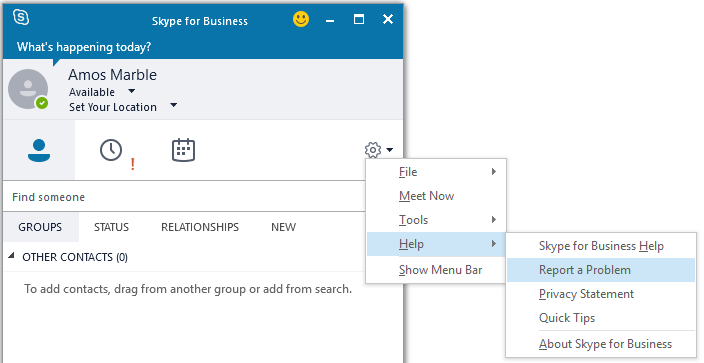
On the Report a problem dialog box, provide the information about your issue.
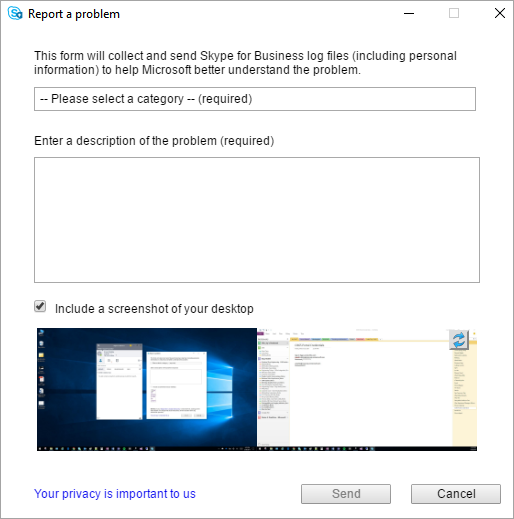
Select a category to describe your issue. Categories include:
- Unable to join a meeting
- Audio or video issues
- Can’t share or view presentation
- Instant messaging issues
- Skype froze or shut down
- Other
In the Enter a description of the problem box, type a description of the problem or the feedback you want to provide.
If you want to include a screenshot with the form, select the Include a screenshot of your desktop check box.
Note
The screenshot option might not show if your organization has disabled it.
When you are done, click the Collect and Send button.
Note
When you send feedback, Skype for Business logs will be collected to help us better investigate any issues.
See Also
For Admins: Turn on or off Skype for Business client feedback reporting