
To present a program in a Skype for Business meeting, it must be running and visible on your Windows taskbar. If you don’t see the program you want to share, you can open it and then just present your desktop. Here's how:
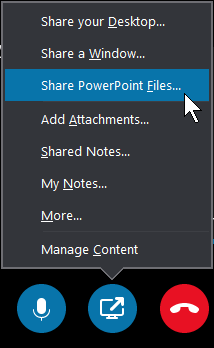
- At the bottom of the meeting window, click the Present Content button
 .
. - Select Present Desktop to share the content on your desktop.
Tip
If you need to show a video, insert it in a PowerPoint presentation and upload the file in the meeting to play the video. See this topic if you want to learn how: Play a video in a Skype for Business meeting.
Program sharing isn’t available for the applications below, but you can use desktop sharing instead:
- Skype for Business
- Skype for Business Recording Manager
- File Explorer
- Sticky Notes
- Windows Sidebar
- Programs with user privileges higher than the privileges for Skype for Business, like the Command Prompt.
Program sharing is not available if you are conducting your meeting on a remote computer running Windows Vista, or an older version of Windows Server 2008.