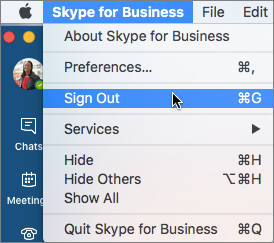
Step 1: Stop Skype for Business from starting automatically
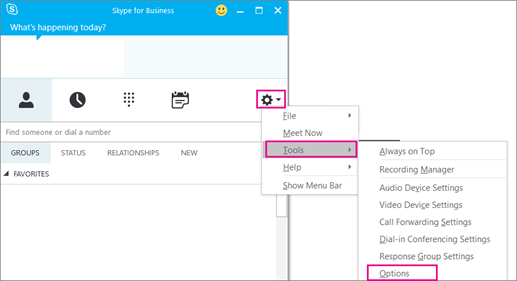
- In Skype for Business, choose the tools icon and Tools > Options.
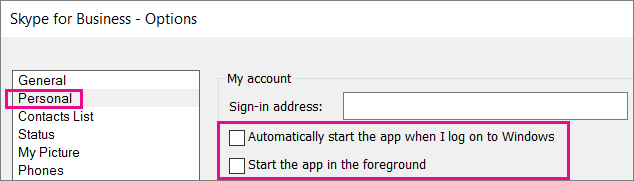
- Choose Personal, then uncheck Automatically start the app when I log on to Windows and Start the app in the foreground. Then choose OK.
- Choose File > Exit.
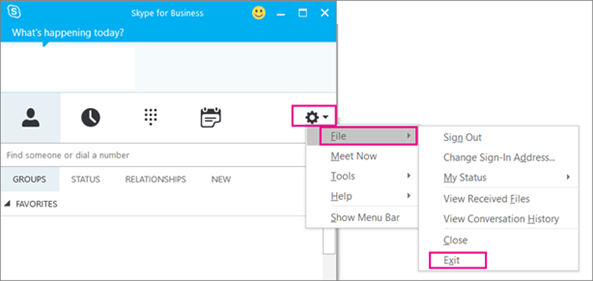
Skype for Business is still on your computer, but you'll no longer see it.
Step 2: Remove Skype for Business from your computer
IMPORTANT: If you are using Microsoft 365Skype for Business, you can't delete it from your computer without also uninstalling the rest of the Office suite. This is because it's integrated with the other Office apps. The following instructions are for customers who have standalone versions of Skype for Business.
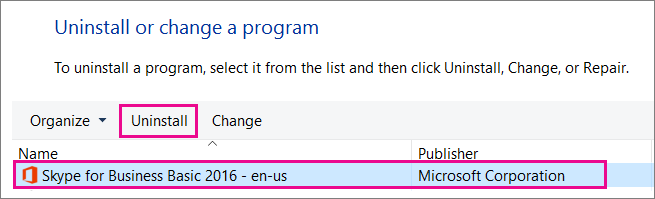
- Go to Control Panel > Programs > Programs and Features > Uninstall or change a program.
- Choose Skype for Business > Uninstall. If you don't see Skype for Business listed, then you're using a version that's integrated with other Microsoft 365 apps. The only way to uninstall it is to remove all of Office from your computer.
- At the Ready to uninstall? box, choose Uninstall.
- When it's done uninstalling, choose Close.