
In SharePoint, you can create an HTML page with Copilot or upload an existing HTML file. Store the page in the Site Pages library, where you can edit, publish, and share it alongside your existing ASPX pages.

Roles and requirements
Site owner setup
Before page authors can create or upload HTML pages, a site owner must allow HTML files in the Site Pages library:
- Go to the Site Pages library.
- Select File types on the command bar.
- Turn on Allow HTML files.
After Allow HTML files is turned on, page authors with the appropriate permissions can create or upload HTML pages.
To prevent the Site Pages library from accepting HTML files, follow the same steps and turn off Allow HTML files.
Page author requirements
| Task | Required access | Microsoft 365 Copilot license required |
|---|---|---|
| Open the HTML page creation screen from + New on a SharePoint site or + Create on the Publish landing page | Permission to create or edit pages | Yes |
| Create or edit a page with the Copilot chat pane | Permission to create or edit pages | Yes |
| Upload or move HTML content to the Site Pages library | Permission to add or move files | No |
| Edit page content directly | Permission to edit the page | No |
| Publish or share a page | Permission to publish or share the page | No |
| View a published page | Permission to view the page | No |
Create an HTML page in SharePoint
Choose a workflow based on whether you want Copilot to create a new page or you already have HTML content to upload.
Open the HTML page creation screen
Use one of the following entry points:
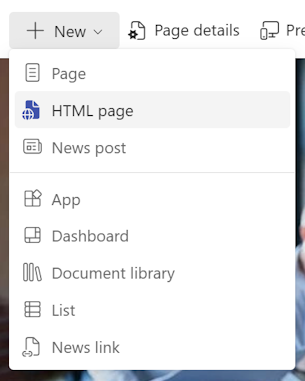
On a SharePoint site, select + New on the command bar, and then select HTML page. Use this entry point to create a page with Copilot or upload HTML content.
On a SharePoint site, select the floating Copilot button in the lower-right corner to open the Copilot chat pane. Use this entry point to create a page with Copilot.
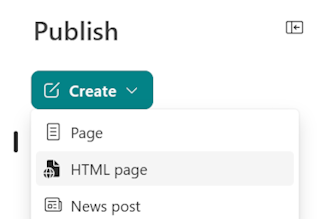
On the Publish landing page, select + Create, and then select HTML page. Use this entry point to create a page with Copilot or upload HTML content.
Create an HTML page with Copilot
- Use any HTML page creation entry point to open the HTML page creation screen or Copilot chat pane.
- In the prompt box, describe the page you want to create. Attach relevant files to provide more context.
- Submit your prompt. Copilot creates a draft and opens it in edit mode.
- Confirm that the page is saved in the Site Pages library. If it isn't, ask Copilot to move it or move it manually.
Tip
Include your content, layout, and color requirements in the prompt. For example:
- "Create a project status HTML page with a roadmap, telemetry, and FAQs."
- "Build an HTML page with team profiles, a timeline, and key milestones."
- "Create a visual identity guide with color swatches and logo usage as an HTML page."
Upload an existing HTML file
If you already have an HTML file or a folder that contains an HTML page and its supporting files, upload it from the HTML page creation screen or the Site Pages library.
Upload from the HTML page creation screen
- Open the HTML page creation screen by using the + New or + Create entry point.
- Select Upload HTML page.
- In the file picker, select the
.htmlfile you want to upload. - After the upload finishes, the page opens in edit mode.
Upload from the Site Pages library
- Go to the Site Pages library for your SharePoint site.
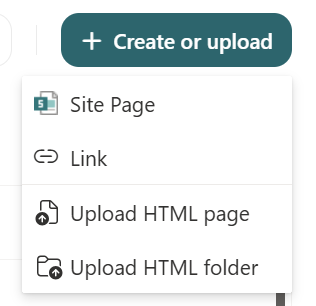
- Select Create or upload, and then select Upload HTML page or Upload HTML folder.
- In the file picker, select the
.htmlfile or folder you want to upload. - After the upload finishes, select the file name to open the page.
Note
SharePoint uploads non-HTML content, such as images, videos, and other files, to the Site assets folder when the content is embedded in the HTML or included in an HTML folder.
Edit existing HTML in your document library as a page
If an HTML file is already stored in a document library, you can open it for editing as a SharePoint page.
- Go to the document library where you store your HTML files.
- Select the ... menu, select Edit, and then select Edit in SharePoint.
- SharePoint moves the file to the Site Pages library and opens it in edit mode.
The HTML file no longer remains in the original document library after SharePoint moves it.
Move HTML files to the Site Pages library
To move one or more HTML files without opening them for editing:
- Select the HTML files in your document library.
- Select the ... menu, and then select Move to.
- Select the Site Pages folder, and then select Move here.
SharePoint moves the selected files to the Site Pages library without opening them in edit mode. The files no longer remain in the original document library.
Edit an HTML page
After you create, upload, or move an HTML page, you can update text directly on the page. To make broader content or design changes, use the Copilot chat pane. You don't need to edit the HTML code.
Edit text directly on the page
- Open the HTML page that you want to edit.
- Select Edit to enter edit mode.
- Select the text you want to change.
- Enter your changes directly on the page.
Edit the page from the Copilot chat pane
- Open the page in edit mode, and then open the Copilot chat pane.
- In the prompt box, describe the change you want to make.
- Review the result, and submit more prompts as needed.
Write effective prompts
Identify the section or element you want to change and describe the expected result. These details help Copilot apply the change in the right place. For example:
- "Add an image of the team."
- "Change the hero background to our brand teal, #038186."
- "Add an FAQ section at the bottom of the page."
To help improve Copilot responses, select Thumbs up or Thumbs down in the chat pane, and then add your feedback. You can also report issues or feature requests through SharePoint support channels.
Publish and share an HTML page
After you review your changes, select Publish on the command bar. Publishing makes the current version visible to people who have permission to view the page; it doesn't grant new permissions. To keep the page as a draft, select Save and close instead.
After you publish the page, you can share it with other people:
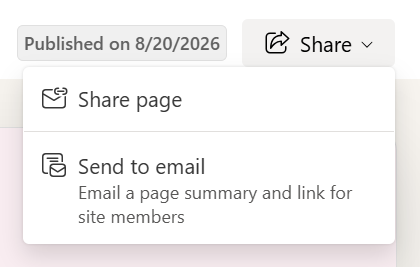
- Select Share in the upper-right area of the page.
- Add a specific person or group, copy a link to share through another channel, or send the page by email.
People can open the published page according to the permissions applied by the sharing option you select.
Frequently asked questions
What can I do with an HTML page in SharePoint?
| Capability | Supported | Notes |
|---|---|---|
| Text editing on canvas | Yes | |
| Images (user-added) | Yes | Supports base64 encoding and URLs for assets within the same domain. |
| Images (stock images) | No | |
| Images (organization assets) | No | |
| Images (AI-generated) | No | |
| Video (overlay) | Yes | Supports URLs for assets within the same domain. |
| Video (inline) | No | |
| Audio file | No | |
| Word, Excel, PowerPoint, and PDF files (open in a new tab) | Yes | Supports URLs for assets within the same domain. |
| Word, Excel, PowerPoint, and PDF files (display inline) | No | |
| Live data sharing (lists and Excel) | Yes | Arbitrary fetch requests and outbound API calls aren't supported. |
| Live data sharing (third-party sources like Jira) | No | |
| Links within the same site | Yes | |
| Links within the same tenant | Yes | |
| Links to another tenant | Yes | Supports link navigation, but not cross-tenant communication. Add the domain to the HTML Field Security allow list. |
| Links outside of SharePoint | Yes | Add the domain to the HTML Field Security allow list. |
| Navigation within the HTML like anchor links | Yes | Doesn't affect SharePoint navigation. |
| Site branding (theme, font) | Yes | Available for pages created with Copilot or updated through a prompt. SharePoint doesn't automatically apply site branding to uploaded HTML. |
| Arbitrary fetch requests | No | |
| Outbound API calls | No | |
| CDN scripts | No | SharePoint supports only Microsoft-managed versions of Chart.js, Mermaid, React, Fluent UI, and Babylon. |
| External libraries | Yes | SharePoint supports Chart.js, Mermaid, React, Fluent UI, and Babylon from a Microsoft-managed CDN. Other CDN-hosted libraries aren't supported. |
| SharePoint app in Teams on mobile (view) | Yes | |
| SharePoint app in Teams on mobile (edit) | No | |
| Promote to news post | No | |
| Amplify to Teams and Viva Engage | No | |
| Save HTML as a template | No | |
| Private drafts | No | |
| Scheduling | No | |
| Co-authoring | No | |
| Reactions and comments | No |
Can I upload an HTML file to SharePoint?
Yes. You can upload an HTML file or an HTML folder to the Site Pages library. If you don't see the upload option, the Allow HTML files setting might be turned off. To turn on Allow HTML files:
- Go to the Site Pages library.
- Select File types in the command bar.
- Turn on the Allow HTML files toggle.
What is the maximum size HTML I can upload to the Site pages library?
The maximum size is 10 MB. If your file is larger than that, make the file smaller. Some ways you can do that is by using reference links to hosted assets instead of embedding content, reducing inline CSS and Javascript, or removing unused markup.
Do I need a Copilot license to edit an HTML page?
You don't need a Copilot license to edit page content directly. You need a Microsoft 365 Copilot license to create or edit a page with the Copilot chat pane.
Does SharePoint apply site branding to an HTML page?
Pages created with Copilot use the site's branding. SharePoint doesn't automatically apply site branding to uploaded HTML, but you can ask Copilot to update the page to match the site.
Can HTML pages call external APIs?
No. SharePoint blocks arbitrary fetch requests and outbound API calls from HTML pages.
- SharePoint renders HTML in a sandboxed iframe that isolates the page from the surrounding SharePoint header, footer, and navigation.
- Content Security Policy (CSP) rules provide extra isolation.
- The sandbox doesn't support CDN-hosted scripts or cross-tenant communication.
Which JavaScript libraries are supported?
- The SharePoint HTML page sandbox supports Chart.js, Mermaid, React, Fluent UI, and Babylon. SharePoint hosts these libraries on a Microsoft-managed CDN.
- The sandbox supports JavaScript when the code is contained in the same HTML file. We don't currently support JavaScript loaded from a CDN or an open-source library location.
- The sandbox can't access the browser localStorage.
Why can't I open a link on my HTML page?
If a link doesn't open on your page, it might not be content from an approved domain. This behavior is by design based on how SharePoint renders HTML pages.
A site admin must add the domain to the site's allow list:
- Go to Settings, select Site information, and then select View all site settings.
- Select HTML Field Security.
- Add the relevant domain to the allow list.
- Save your changes and refresh the page.
- Once the domain is allowed, the link should open correctly.
Can I view analytics for an HTML page?
HTML pages have similar analytics support to ASPX pages.
Can I disable or restrict HTML pages at the tenant level?
No.