
Last Updated: August, 18, 2026
ISSUE
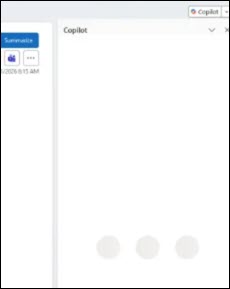
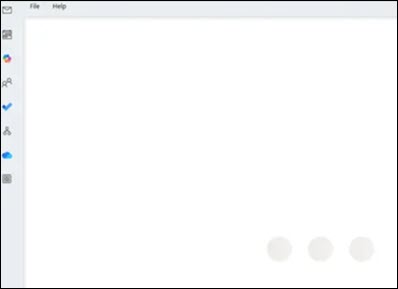
When a user selects Copilot chat in classic Outlook for Windows, the chat window displays three dots. Selecting the Copilot button on the app bar yields a similar unexpected result.
To reproduce this issue
In classic Outlook for Windows, select the Copilot chat button in the ribbon. The resulting page fails to display properly and instead shows three dots:
Similarly, selecting Copilot on the app bar fails to render as expected and instead the client displays three dots:
STATUS: FIXED
This issue is fixed in the following builds:
- Current Channel version 2607 (Build 20228.20190)
- Monthly Enterprise Channel 2607 (20228.20188)
WORKAROUND
- Close the classic Outlook client and other Office apps.
- Locate and rename this folder %LOCALAPPDATA%\Microsoft\Office\16.0\Wef to wef.old.
- Restart classic Outlook. Outlook will recreate a new Wef folder automatically, forcing web add-ins to reload and download fresh cache data.
More Resources
 Ask the experts
Connect with experts, discuss the latest Outlook news and best practices, and read our blog.
 Get help in the community
Ask a question and find solutions from Support Agents, MVPs, Engineers, and Outlook users.
 Suggest a new feature
We love reading your suggestions and feedback! Share your thoughts. We're listening.
See Also
Fixes or workarounds for recent issues in classic Outlook for Windows