
You can add extra functionality to your Microsoft SwiftKey Keyboard by adding arrow keys. Here's how:
- Open the Microsoft SwiftKey app from your device
- Tap 'Layout & keys'
- Check or uncheck 'Arrow Keys'
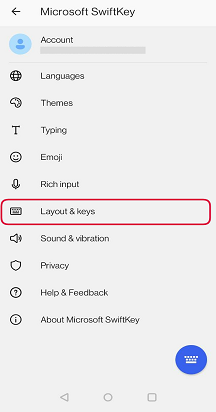
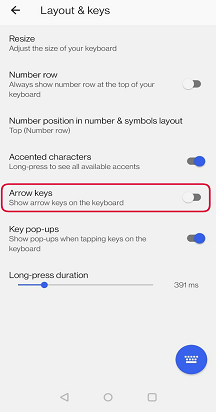
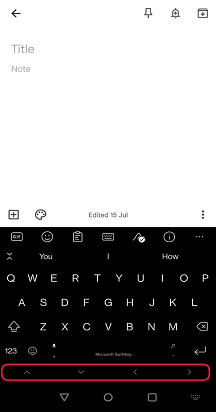
Once you have enabled arrow keys in settings, they will appear at the bottom of your keyboard:
Tablets:
If you are using Microsoft SwiftKey on a tablet, you have the option to use the 'extended layout' which provides you with left and right arrow keys on the first pane of your keyboard.
The full four arrow keys are available on the 2nd pane of the keyboard. To access this tap the '123' key.
Tablet users can enable the setting by:
- Open the Microsoft SwiftKey app
- Tap 'Layout & keys'
- Tapping to enable 'Extended layout'

Note: Cursor control can be enabled by long pressing the spacebar.
Contact Us
For more help, Contact Support at Microsoft SwiftKey Support - Contact us