
Your Microsoft SwiftKey Keyboard defaults to a medium size setting.
Should you want a change, you can access your Microsoft SwiftKey Keyboard resizing options in the following ways.
1 - From your Toolbar
- Tap the three dots ...
- Tap the 'Resize' option
- Drag the boundary boxes to resize and reposition your SwiftKey Keyboard. If you make a mistake simply tap the 'Reset' button.
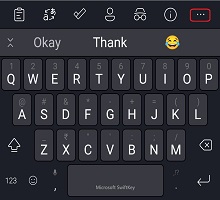
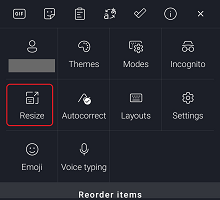
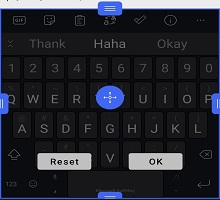
If you've selected 'Thumb' mode, drag the middle boundary box horizontally to adjust the size of each keyboard half.
For users whose devices hide the chin/navbar, the resizing tool will also allow you to reposition your Microsoft SwiftKey Keyboard so it sits higher on your screen.
Alternatively:
- Tap the three dots ...
- Tap the 'Modes' option
- Choose your desired keyboard mode before tapping 'Resize'
- Drag the boundary boxes to resize and reposition your SwiftKey Keyboard.
2 - From the Typing Menu
You can also resize your keyboard from within Microsoft SwiftKey settings in the following way:
- Open the Microsoft SwiftKey app
- Tap 'Layout & keys'
- Tap the 'Resize' option
Troubleshooting
If your keyboard doesn't scale correctly to your screen size please uninstall the Microsoft SwiftKey Keyboard (no need to clear your cache/data too) and download Microsoft SwiftKey again. This should correct any resizing problems.
Note: The fresh install will delete your Microsoft SwiftKey Stats, including Photo themes and saved clips on the clipboard.
Contact Us
For more help, Contact Support at Microsoft SwiftKey Support - Contact us
