

Microsoft SwiftKey Keyboard for Android uses the standard Android font. This means, that depending on what version of the Android OS your device(s) are running and what app you are using, the look and color of the emoji will be impacted. Different manufacturers may also provide a different font than the standard Android one as well.
Also, if the font on your device has been changed to something other than the Android system font, emoji will most likely not be visible. This issue has to do with the actual font and not Microsoft SwiftKey.
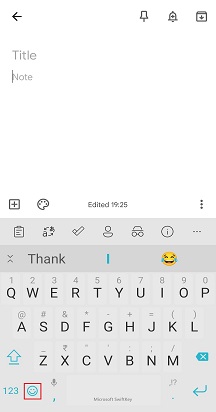
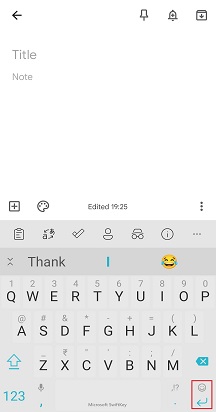
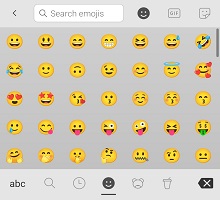
The emoji menu is accessed from the keyboard by tapping or long pressing the emoji/enter key in the bottom right corner, or via the dedicated emoji key in the bottom left (depending on your settings).
You can change this by following the below steps:
- Open the Microsoft SwiftKey app
- Tap 'Emoji'
- Toggle the 'Dedicated emoji key' setting to the on position
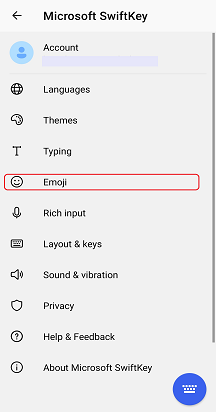
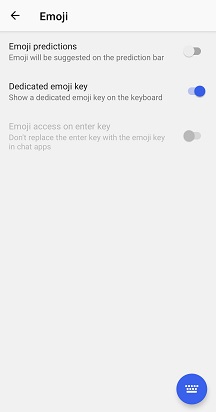
With the 'Dedicated emoji key' checked, just tap on the emoji (smiley) face to open the emoji panel.
If you leave it unchecked you can still access emoji by long pressing the 'Enter' key.
Once you open the panel, just scroll through, choose the emoji you would like to use, and tap to enter into the text field. Or, you can return to the normal keyboard panel by tapping the 'abc' key.
Contact Us
For more help, Contact Support at Microsoft SwiftKey Support - Contact us