

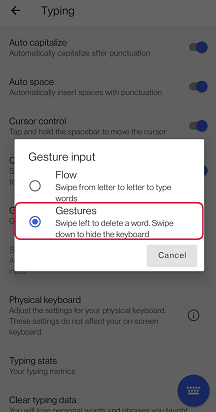
Before using gestures make sure you have enabled them. Check this by:
- Open your Microsoft SwiftKey app
- Tap 'Typing'
- Tap into 'Gesture input'
- Select 'Gestures'


1. You can slide from right to left across the letters to delete a word
2. You can slide down the keyboard to minimize
3. You can slide up on the keys to capitalize; like tapping the shift key
If more than one language is in use, you can slide on the spacebar to change layout (e.g. from QWERTY to Greek).
Gestures are activated by the speed of the gesture, rather than distance. If you are having problems with your gestures, please try sliding your finger a bit faster across your keyboard.
Please note that slide down to minimize, and slide up to capitalize gestures are not available for tablet or large screen devices, but using the back button on your device will still work to minimize the keyboard.
While Flow is enabled, all of these gestures are deactivated.
Holding down the delete key deletes word-by-word; the longer you hold it, the faster it deletes.
Contact Us
For more help, Contact Support at Microsoft SwiftKey Support - Contact us