
This article applies to frontline managers.
If your team is using the time clock feature in Shifts, you can export your team's time sheet report to an Excel workbook for payroll or reporting purposes.
In this article
Export your team's time sheet report
View your team's time sheet report
Export your team's time sheet report
In the schedule, select the arrow
 next to Clock in, and then select Export time sheet.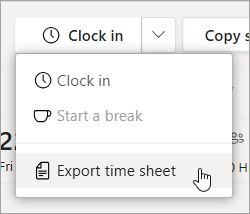
In the Export time report dialog, choose the start and end dates for the report you want to export.
Select Export. Your report is exported to an Excel workbook.
By default, the file is saved to the Downloads folder on your computer with the following name: TimeSheetExport_<start date>-TO-<end date>_<team ID>.xlsx.
Note
Employees can edit their time sheets on mobile for up to one month or until confirmed. All original and edited times will appear in the report.
View your team’s time sheet report
The Excel workbook contains the following worksheets:
- Final Time Clock Report: Data in this worksheet includes the edits made by team members to their time sheets.
- Original Time Clock Report: Shows the original time sheet data (before team members edit their time sheets).
- Daily Total: Shows the daily totals for each team member.
- Total <start date to end date>: Shows the totals of each team member for the date range of the report.
Final Time Clock Report and Original Time Clock Report worksheets
Each clock-in entry by a team member appears as a row with following columns.
| Column | Column name | Description |
|---|---|---|
| A | Legend | |
| B | Date | Date of shift |
| C | Employee Name | Team member name |
| D | Clock In Time | Clock in date and time |
| E | Clock Out Time | Clock out date and time |
| F | Shift Start Time | Schedule start time of shift |
| G | Shift End Time | Scheduled end time of shift |
| H | Unpaid Hours | Number of unpaid hours |
| I | Paid Hours | Number of paid hours |
| J | Hours Scheduled | Hours scheduled |
| K | Hours Worked | Hours worked |
| L | Break Start Time | Break start date and time |
| M | Break End Time | Break end date and time |
| N | Break Notes | Any break notes entered by the employee |
| O | Break Hours Taken | Total break hours taken including paid and unpaid |
| P | Clocked In On Location | Indicates whether the employee clocked in at their assigned work location based on GPS data |
| Q | Clocked Out On Location | Indicates whether the employee clocked out at their assigned work location based on GPS data |
| R | Break Started On Location | Indicates whether the employee started their break at their assigned work location based on GPS data |
| S | Break Ended On Location | Indicates whether the employee ended their break at their assigned work location based on GPS data |
| T | Hours Worked Minus Break Hours | Total hours worked, calculated from the employee's clock in and clock out times, excluding paid and unpaid breaks |
| U | Notes | Any notes entered by the employee when editing their time sheet |
| V | Confirmed | Indicates whether the employee confirmed their time sheet |
| W | ¹Parental Leave | Total time off hours |
| X | ¹Sick Day | Total time off hours |
| Y | ¹Vacation | Total time off hours |
| Z | ¹Off | Total time off hours |
| AA | ¹Unpaid | Total time off hours |
¹Default time-off reason in Shifts. The time-off reasons that you see in your report depend on the time-off reasons set up in Shifts settings for your team schedule.
Daily Total worksheet
Each row represents a team member with the following columns.
| Column | Column name | Description |
|---|---|---|
| A | <Blank> | |
| B | Row Labels | |
| C | Hours Worked | Hours worked |
| D | Hours Scheduled | Hours scheduled |
| E | Unpaid Hours | Number of unpaid hours |
| F | Paid Hours | Number of paid hours |
| G | Break Hours Taken | Total break hours taken including paid and unpaid |
| H | Hours Worked Minus Break Hours | Total hours worked, calculated from the employee's clock in and clock out times, excluding paid and unpaid breaks |
| I | ¹Parental Leave | Total time off hours |
| J | ¹Sick Day | Total time off hours |
| K | ¹Vacation | Total time off hours |
| L | ¹Off | Total time off hours |
| M | ¹Unpaid | Total time off hours |
¹Default time-off reason in Shifts. The time-off reasons that you'll see here in your report depend on the time-off reasons set up in Shifts settings for your team schedule.
Total <start date to end date> worksheet
Each row represents a team member with the following columns.
| Column | Column name | Description |
|---|---|---|
| A | Row Labels | |
| B | Hours Worked | Hours worked |
| C | Hours Scheduled | Hours scheduled |
| D | Unpaid Hours | Number of unpaid hours |
| E | Paid Hours | Number of paid hours |
| F | Break Hours Taken | Total break hours taken including paid and unpaid |
| G | Hours Worked Minus Break Hours | Total hours worked, calculated from the employee's clock in and clock out times, excluding paid and unpaid breaks |
| H | ¹Parental Leave | Total time off hours |
| I | ¹Sick Day | Total time off hours |
| J | ¹Vacation | Total time off hours |
| K | ¹Off | Total time off hours |
| L | ¹Unpaid | Total time off hours |
¹Default time-off reason in Shifts. The time-off reasons that you'll see here in your report depend on the time-off reasons set up in Shifts settings for your team schedule.