
This article applies to frontline workers.
Note
This feature is currently in public preview.
Shifts makes it easy to pick up shifts at other locations! You can view and request open shifts at locations that work best for you, based on your schedule.
In this article
View open shifts at other locations
Request an open shift at another location
View open shifts at other locations
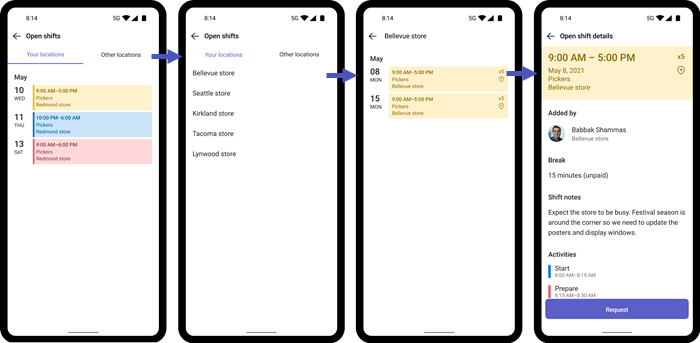
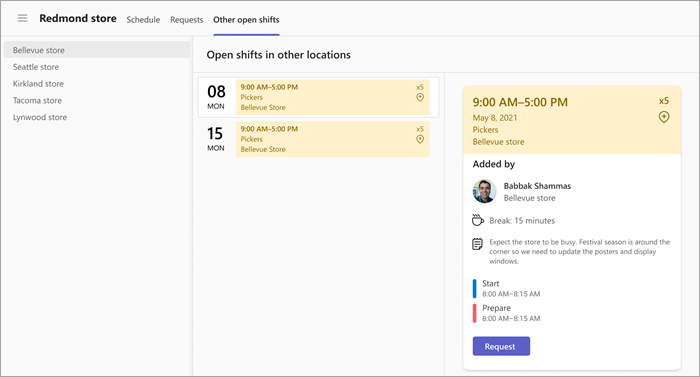
To see available open shifts at other locations:
In Shifts, tap Open shifts.
Tap the Other locations tab.
Choose a location.
Select a shift you’re interested in to view the details.
For example, you primarily work at the Redmond store. The following screenshot shows open shifts available at a different store, the Bellevue location.
Request an open shift at another location
To pick up an open shift at another location:
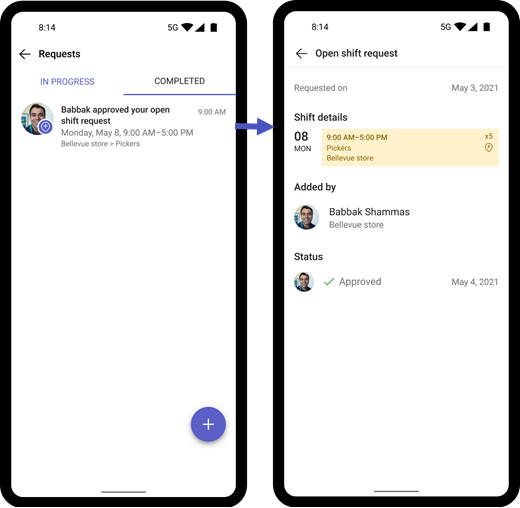
On the Open shift details page for the shift, tap Request. Your request is sent to the manager at that location for approval.
When the manager approves (or declines) your request, you’ll get notified.
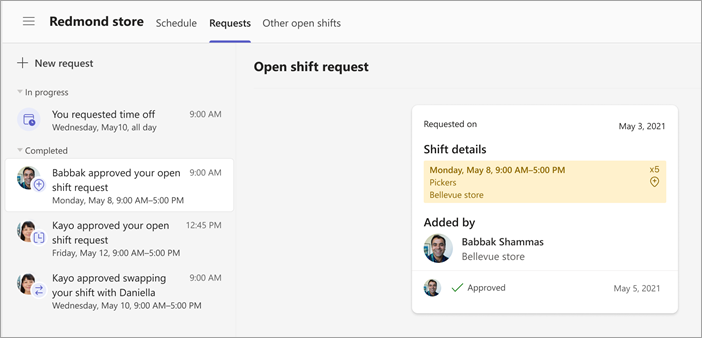
This example shows a notification and the request for an open shift at the Bellevue location approved by the manager at that location.
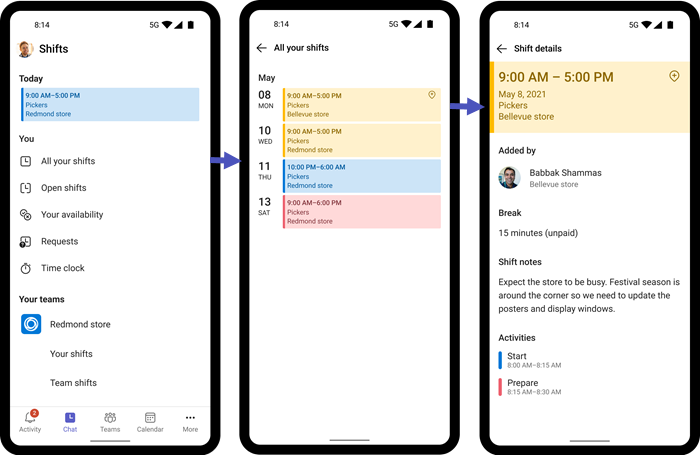
If your request is approved, you’ll see the shift, along with the time and location.
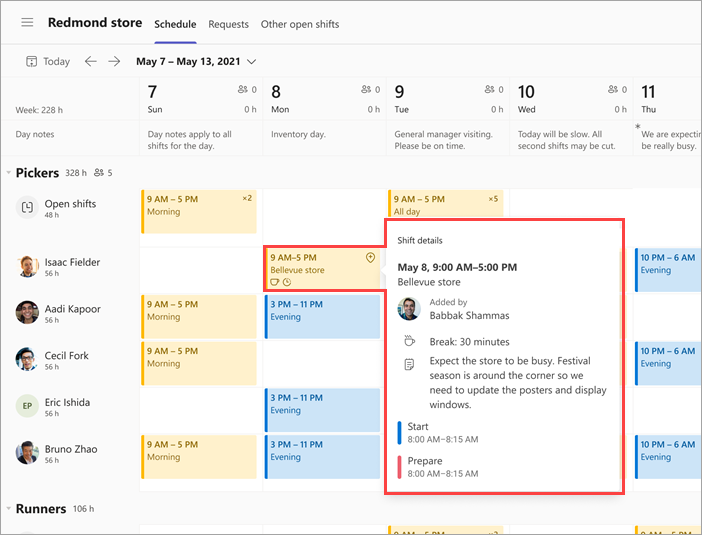
Here, we see the shift from the Bellevue location in the list of shifts.
For frontline managers
Make open shifts available across locations in Shifts
For IT admins
Set up open shifts across locations in Shifts for your frontline