
Does this scenario sound familiar? You're in a Teams meeting, and there's a lot to discuss. However, halfway through the meeting, everyone is still talking about the first topic. Looks like you'll need to schedule a follow-up meeting to get to the other topics.
Now integrated into Teams meetings is a timer to keep your team's meetings on schedule for more efficient and thorough discussions.
How to add a timer to a Teams meeting
Note
You can't create a timer that is longer than 100 minutes.
During a meeting, any meeting participant can open the ... More menu in the Teams meeting control bar.
Select
 Timer from the menu.
In the
Timer options window, select a time and then
 Start new timer.
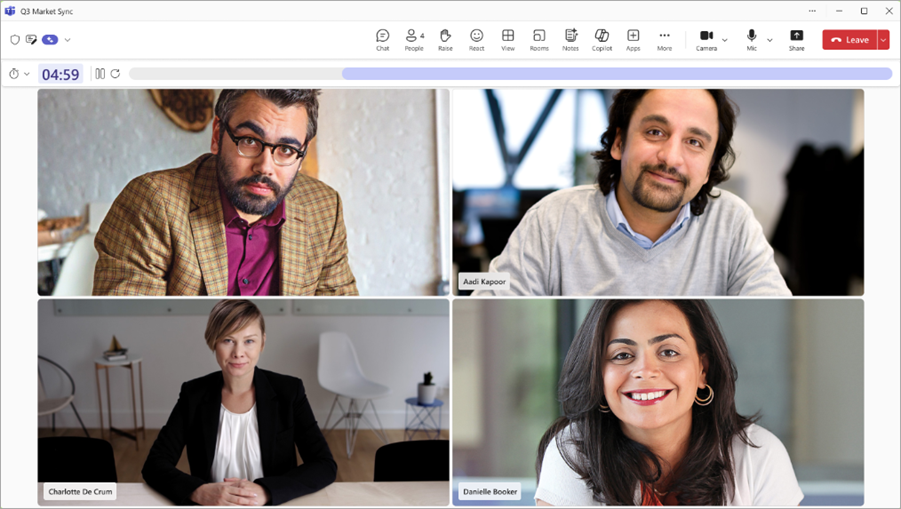
- The time countdown begins, and the timer is visible to all meeting participants with presenter capabilities.
- The timer also changes colors as the timer gets closer to zero.
Once the timer has started, you can:
- Reset the timer by selecting
 Reset timer.
 - Pause the timer by selecting
 Pause timer.
 - Stop the timer by selecting the Cancel timer button.
- Reset the timer by selecting
When the time reaches zero, the timer plays a sound and turns red, alerting the participants that time has ended.
- The timer continues to countdown time, showing the participants how much time has lapsed since time ran out.
To end the timer, the Cancel timer button must be selected.
Limitations
- The timer isn't supported for Teams calls, webinars, or town halls.
- Notes are only visible to participants with presenter capabilities, not participants marked as attendees.