
Plumbing and piping plans show the location of fixtures, pipes, and valves.
You can lay out plumbing plans on a blank page or as a layer in an existing floor plan.
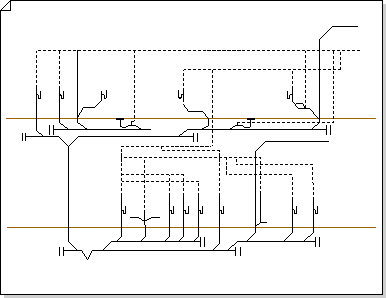
You can create a plumbing and piping plan in one of the three following ways:
On a blank page
Click Templates > Maps and Floor Plans, and then click Plumbing and Piping Plan > Create.
By default, this drawing type opens a scaled drawing page in landscape orientation
 . You can change these settings at any time.
As a layer in a CAD floor plan
Create a Plumbing and Piping Plan on a blank page. See the previous section for information on creating one.
On the Insert tab, click CAD Drawing.
Locate the CAD file, select it, and then click Open.
To accept the size and scale of the CAD drawing, click OK.
Note
If the drawing scale of the CAD drawing is different from the scale of your drawing page, you will be asked to match the scales or continue without matching.
After you insert the drawing, you can resize it, change its scale, or move it. You can also lock the Visio layer that contains the CAD drawing.
Tip
To change the properties of an inserted CAD drawing, right-click the drawing, point to CAD Drawing Object on the shortcut menu, and then click Properties. For more information, see Change AutoCAD layer properties.
As a layer in an existing Visio floor plan
On the File menu, click Open.
In the Open dialog box, locate the drawing that you want to use. Select the file, and then click Open.
From the Shapes pane, drag and drop plumbing fixtures, pipes, and valve shapes into the drawing.
Drag selection handles, control handles, and endpoints.Tip
You can lock the existing layers of a drawing so that you do not accidentally change them when you create a new plan on top. For more information, see Lock or unlock a layer.
Enter shape data. To do that:
- Right-click the shape, and select Data > Shape Data.
- In the Shape Data pane, click in each field and then type or select a value.
Connect plumbing components with pipes. To do that:
- Drag pipe shapes onto the drawing page.
- Glue each end of the pipe shapes to connection points
 on the other shapes.
 - To resize a pipe, drag an endpoint.
Label shapes by selecting them and typing. To reposition a label, drag the label's control handle.