
Audit diagrams document and analyze processes such as financial transactions and inventory management.
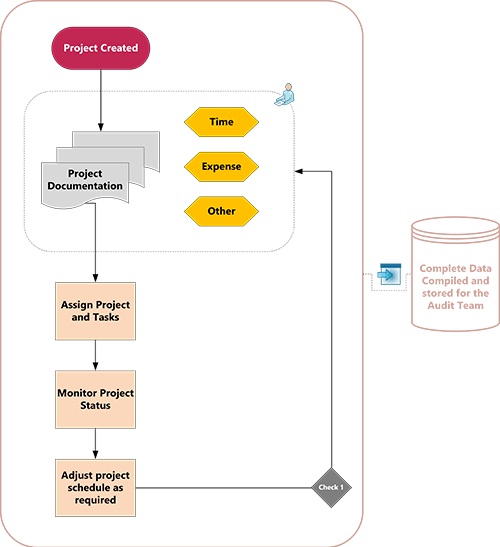
Start the Visio app.
Select the Templates tab in the backstage and then select Business > Audit Diagram.
Choose the audit diagram you wish to start with and select Create.
For each step in the process you're documenting, you're going to drag and connect flowchart shapes onto your drawing:
Drag a shape from a stencil onto the drawing page and position it near or over the shape you wish to connect it to. Blue triangles will appear.

While still holding down the mouse button, drag the shape over one of the blue triangles so that it turns dark blue.
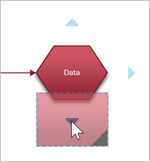
Release the mouse button. The shape is placed on the drawing page, and a connector is added and glued to both shapes.
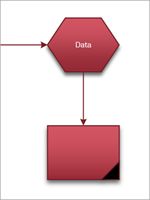
To add text to a shape, select it, and then type.
You can number the shapes in your flowchart to illustrate the sequence of process steps:
In a flowchart, select the shapes that you want to number.
On the View tab, select Add-Ons > Visio Extras.
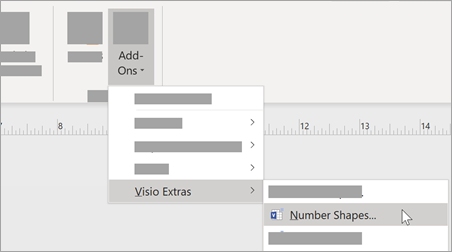
On the General tab, under Operation, select Auto Number. Under Apply to, click Selected Shapes, and then click OK.
Tip
To number new flowchart shapes as they are dragged onto the page, in the Number Shapes dialog box, click Continue numbering shapes as dropped on page.