
Try it!
To make a professional impression, use the ruler, guides, and grid to arrange and position shapes neatly in your drawings.
Show or hide the rulers
- To show the Ruler, select View and select the Ruler checkbox.
- To hide the Ruler, select View and clear the Ruler checkbox.
Work with Guides
- To show Guides, select View and select the Guides checkbox.
- To hide Guides, select View and clear the Guides checkbox.
- Drag a guide from the horizontal or vertical ruler onto the drawing page.
- Drag a shape to the guide until a connection point on the shape snaps to it.
- Drag a guide to move the shapes connected to it.
- To remove a guide, select it and press Delete.
Show or hide the grid
- To show the Grid, select View and select the Grid check box.
- To hide the Grid, select View and clear the Grid check box.
Snap shapes to the grid, guides, and rulers
Select View > More > Snap & Glue.
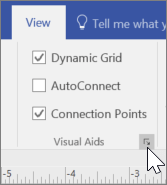
Select the Snap to options you want.
- To snap shapes to the grid, select Grid.
- To snap shapes to guides, select Guides.
- To snap shapes to rulers, select Ruler subdivisions.
Select OK.
View a diagram in presentation mode
- To view a drawing in full-screen mode, Select View > Presentation Mode.
- To move from page to page, select a blank area of the drawing.
- To close presentation mode, press Esc.