

You can use sticky notes and note grids in Whiteboard to brainstorm ideas, plan projects, or organize subjects.
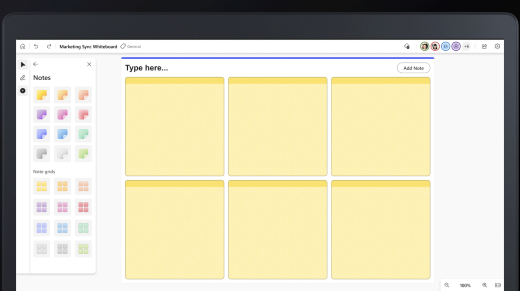
To add a sticky note or note grid:
- Select the Create button in the toolbar, then click Add note or note grid.
- Choose a note color and then drag the note icon to the canvas to add the note.
- Select a note grid if you want to add multiple notes at once. To add more sticky notes to a note grid, select Add Note in the top right.
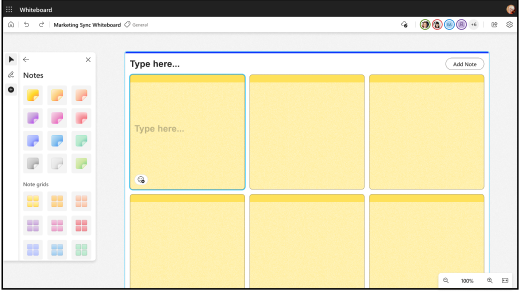
- You can also choose a specific area of the canvas, press and hold (on touch devices) or right-click to open the Context menu, and then select the Note button to insert a sticky note.
To edit a note:
- To add text to a note, click the note and enter your message when the cursor appears. You can also select the Edit text (pencil) button.
- To annotate a sticky note with ink, write on top of the sticky note. The ink will then be anchored to the sticky note.
- Right click on a note and select the Background color picker button to change a note's color.
To copy or delete a note or note grid:
- Select a note and select the Copy button to copy it. Press and hold (on touch devices) or right-click on the canvas to open the Context menu, and then select Copy.
- Click the Delete(del) button to delete a note. You can delete individual notes in a grid or the entire grid.