

To add text to a whiteboard:
- Select the Create button in the toolbar, then select Add text.
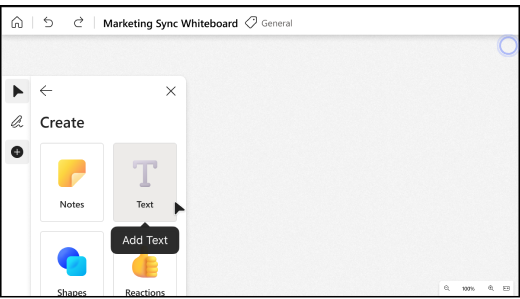
- Click on the canvas to add a text box.
- You can also choose a specific area of the canvas, press and hold (on touch devices) or right-click to open the Context menu, and then select Text.
To edit, copy, or delete existing text:
- Select the text box and then select the Edit text (pencil) button.
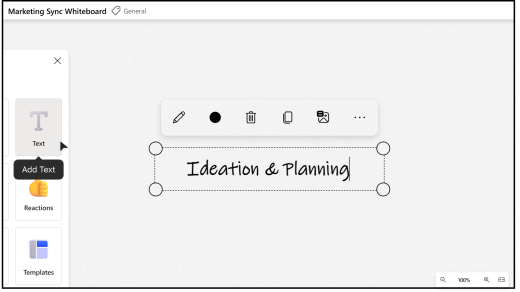
- Select the Text color picker button (circle) to choose a new text color. The font cannot be changed.
- Select the Delete(del) button (trash can) to delete the text box.
- Select the Copy button (double square) to copy the text. Press and hold (on touch devices) or right-click on the canvas to open the Context menu, and then select Copy.
Note
It's helpful to select **Edit Alt text and add a short description for accessibility.