

Digital ink is available whether you're using a mouse, pen, or finger. The pen toolbar includes 15 ink colors, 15 highlighters, ink arrows and various thicknesses.
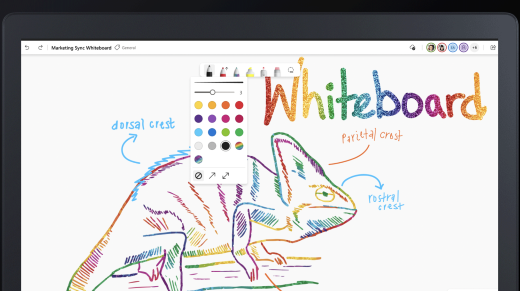
To get started:
- Select Inking (pen icon) from the left-hand menu or press Alt + W.
- Select a pen from the ink toolbar to begin drawing. Select the pen twice to choose a new color or thickness from the drop-down menu.
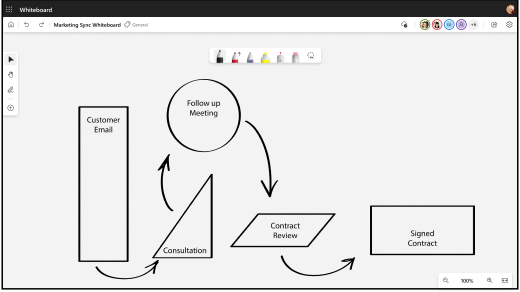
- Select Single arrow mode in the drop-down menu or press Alt + A to turn your ink strokes into single arrows.
- Select Double arrow mode in the drop-down menu or press Alt +Shift + A to turn your ink strokes into double arrows.
- Select the Highlighter tool or press Alt + H to outline objects, lines, or text.
- Select the Laser Pointer tool to temporarily highlight areas of the board.
To draw or erase:
- Draw straight lines by holding down the Shift key as you ink.
- Select the Eraser tool or press Alt + X to erase ink. Alternatively, if you have an active pen, you can use the eraser on the pen to erase.
- Select Enhance inked shapes from the Settings menu to automatically convert drawn images into shapes.