
Note
This experience is gradually rolling out to Windows Insiders and may not be available on your device yet. Preview features may change based on feedback. To join Windows Insider program go to Join the Windows Insider Program and manage Insider settings.
Windows Search helps you find what you need and get things done from one place. Select the search box on the taskbar, or press Windows logo key + S, then type what you want to find or do.
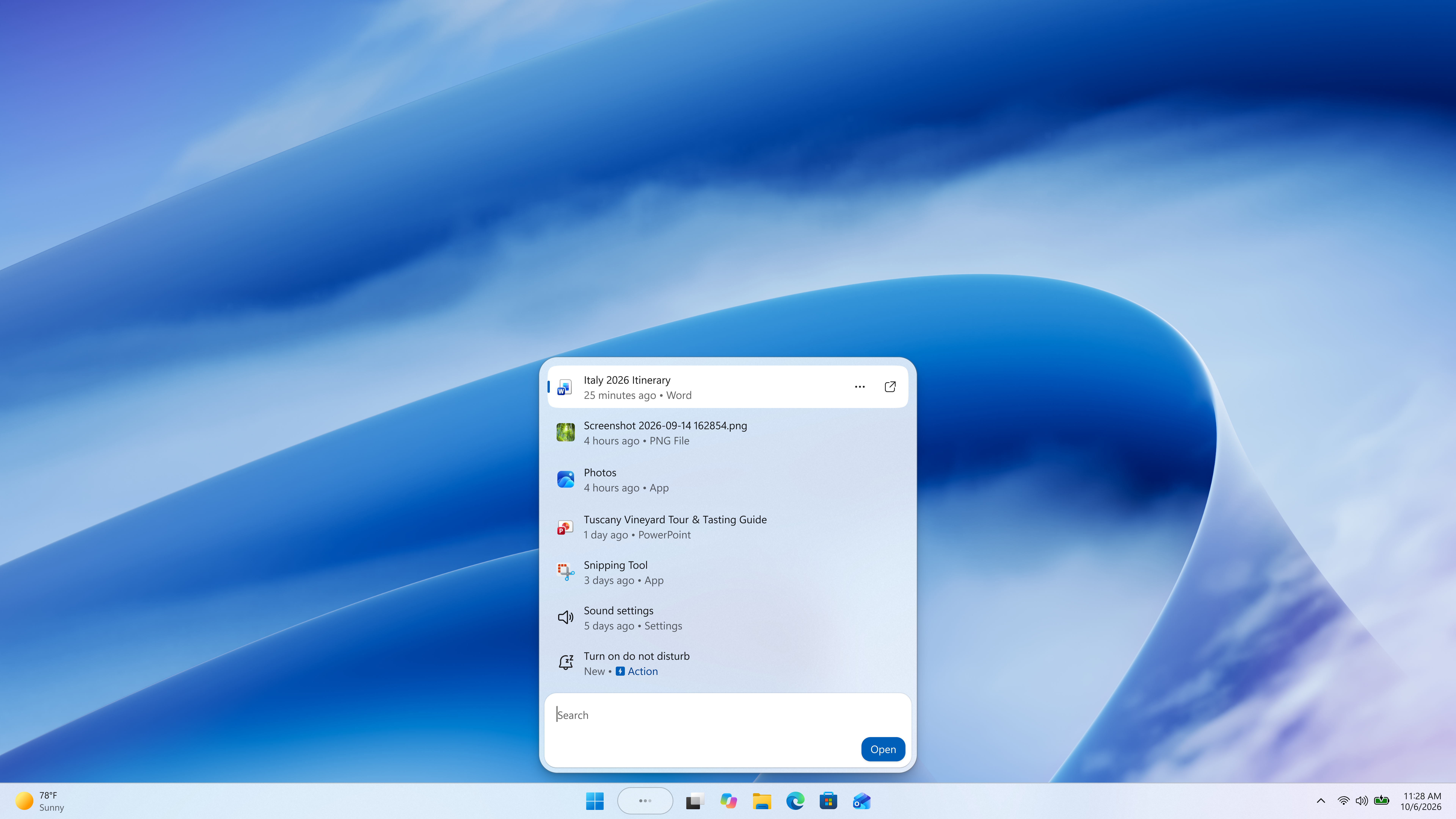
The new Windows Search experience is built on WinUI 3. This modern foundation makes Windows Search faster and more efficient with resources, while delivering an even more streamlined and focused design. Streamlined into a single list, apps, files, settings, and documents are brought together in a single, easy-to-scan view that reduces visual clutter and puts the information you need in one place. Now, you can also use Windows Search to change common settings, open and arrange app windows, and complete supported actions on a connected phone. With inline actions and previews, Windows Search quickly helps you find what you need and becomes a more capable starting point for getting things done in Windows.
Before you begin
Enabling the new Windows Search experience requires each of the following:
A PC enrolled in the Windows Insider Program and running the latest Windows 11 Insider Preview build available to your Insider Channel. This feature is gradually rolling out so availability may vary.
Windows display language set to English. The initial preview supports English only.
An internet connection for features that use online results or connected services.
A supported mobile device connected to your PC to use phone actions. Phone capabilities vary by device, market, and configuration.
Find what you need
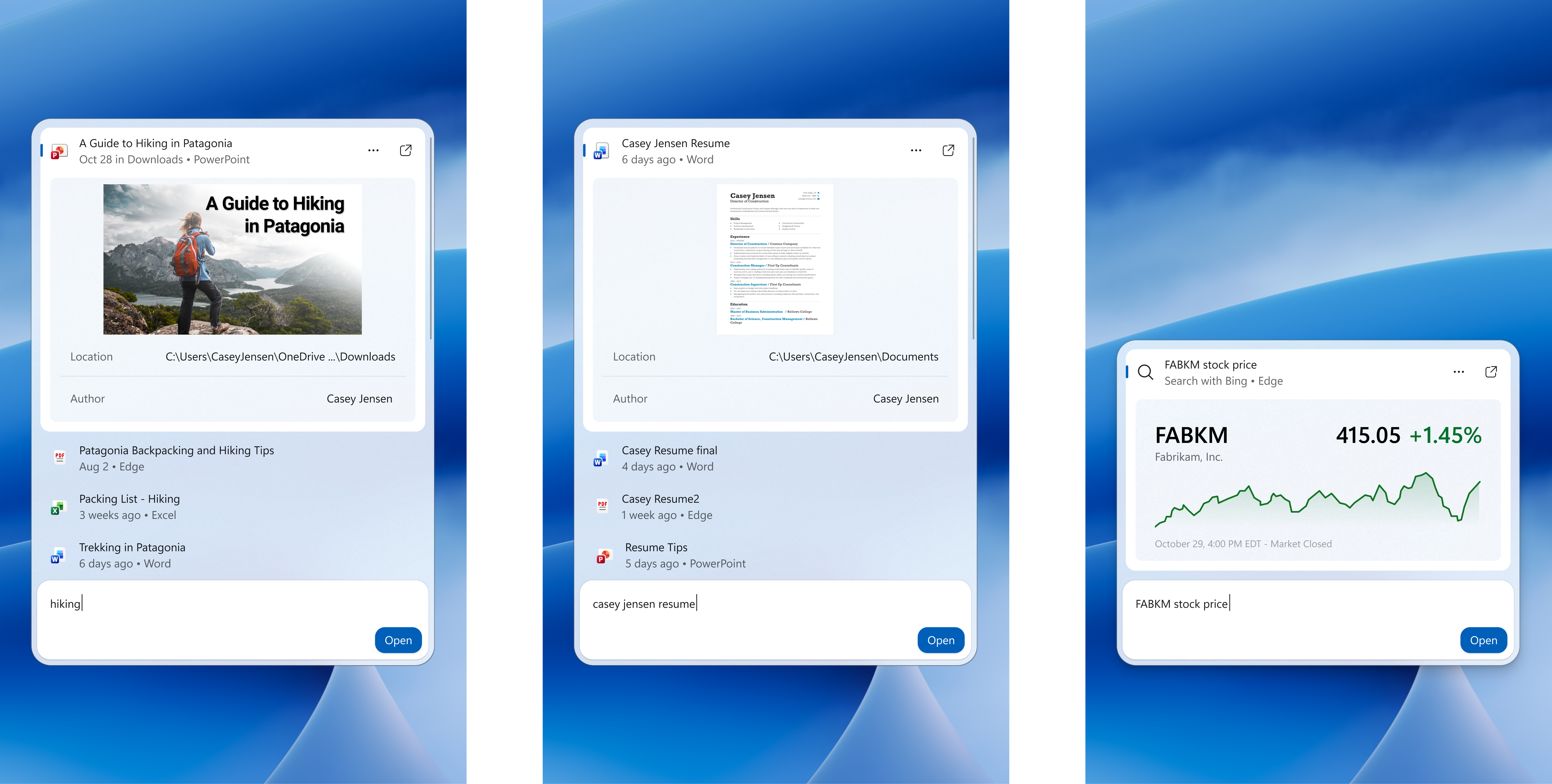
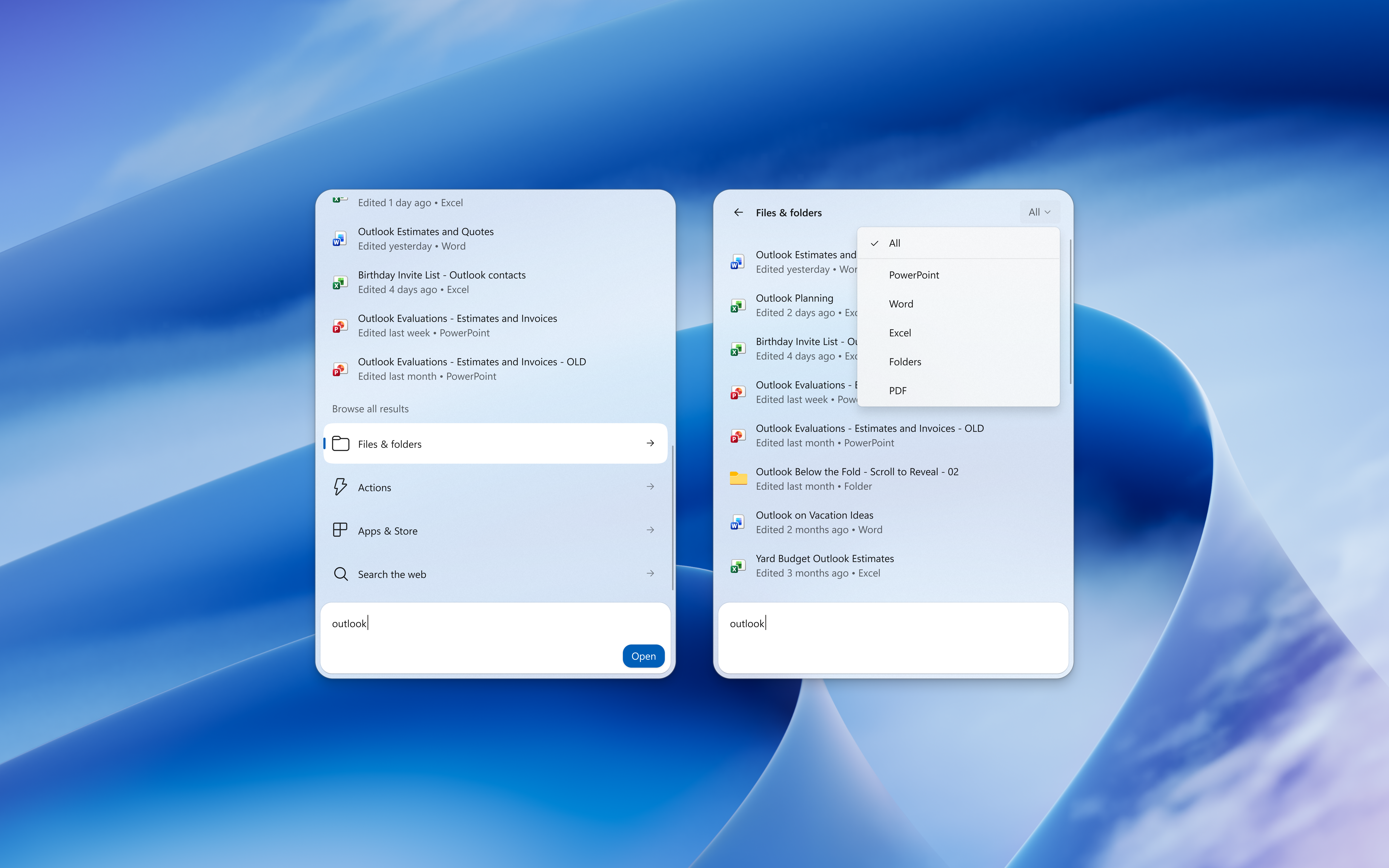
Use Windows Search to quickly find apps, files, settings, and documents on your PC. Results are presented in a streamlined view that is easy to scan. Scroll to see more results and filter by Files & Folders, Settings, Actions, and more. Inline previews and richer file details can help you differentiate similar results and give you more context before opening a file. Rich inline web previews can bring answers to queries like “weather in San Diego” directly into Windows Search, helping you get useful information without leaving the experience. Additional previews for facts and more are coming soon.
Taking action from Windows Search
Inline actions to help you finish tasks right where you started, without opening another app or navigating through additional screens. We’re starting with familiar tasks where saving a few steps can make a meaningful difference in everyday use.
Change settings
Select the search box on the taskbar or press Windows logo key + S, then try one of the examples below:
"Turn on dark mode" - Changes the Windows color mode to dark.
"Increase brightness" - Increases the display brightness.
"Brightness down" - Decreases the display brightness.
"Enable Bluetooth" - Turns on Bluetooth.
"Mute volume" - Mutes the speaker volume.
"Set volume to 80%" - Adjusts the speaker volume.
"Bigger mouse pointer" - Increases the mouse pointer size.
"Turn on night light" - Shows warmer colors on your screen.

Open and arrange apps
Select the search box on the taskbar or press Windows logo key + S, then try one of the examples below:
"Snap Notepad and Calculator" - Arranges the open apps side by side.
"Snap this window left" - Snaps the active window to the left side of the screen.
"Open Notepad and Calculator snapped" - Opens and arranges the two apps side by side.
"Arrange my windows" - Arranges your open windows into a tidy on-screen layout
"Minimize all but Excel" - Minimizes every window except Excel.
"Show desktop" - Minimizes all open windows.
"Lock this device" - Locks your PC.
"Open a new desktop" - Creates a new virtual desktop.
"Move Teams to second monitor" - Moves an open window to another display.

Use your connected phone
Note
Phone actions require you to connect an Android device to your Windows PC. Availability varies by device and region. Support for iOS is coming at a later date.
Select the search box on the taskbar or press Windows logo key + S, then try one of the examples below:
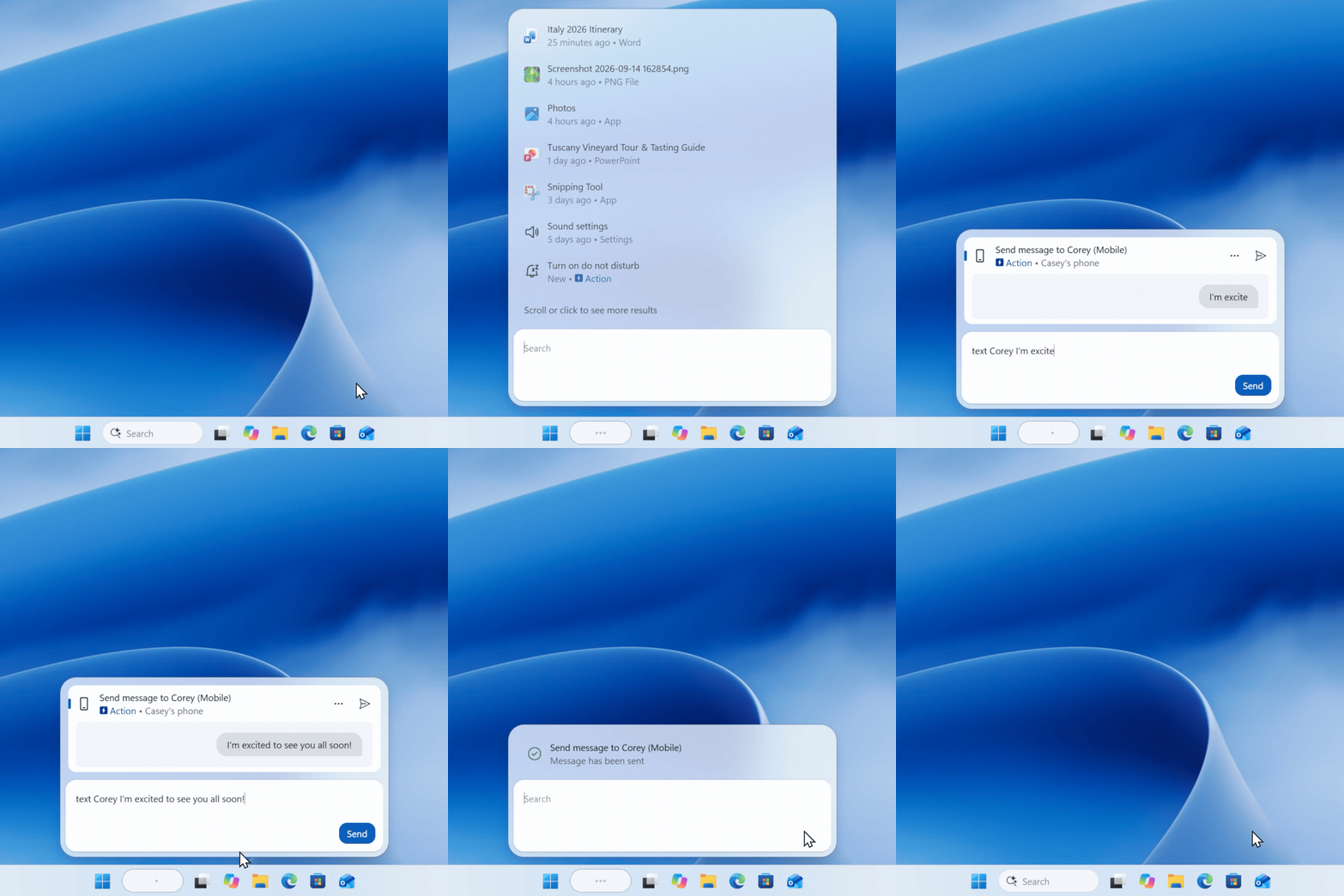
"Text [contact name] [message]" - Composes a text message to a contact.
"Find my phone" - Rings your connected phone so you can locate it.
"Call [contact name or number]" - Starts a call to a contact or phone number.
"Turn on do not disturb on my phone" - Silences notifications on your phone.
"Put my phone on vibrate" – Sets your phone ringer mode to vibrate.
"Launch Instagram on my phone" - Opens an app on your connected phone.
"Screen mirror my phone" - Shows your phone screen on your PC.
"Connect mobile device" - Starts the setup to connect your mobile device to your Windows PC.
Things to know
The new Windows Search experience is being introduced gradually and will continue to improve. The initial preview supports English only. If your Windows display language isn't English, the new experience or its actions might not be available.
To manage suggested content in search results, go to Start > Settings > Privacy & security > Search.
Searching from the Start menu or typing after pressing the Windows logo key will open the existing Windows Search Box experience.
Search allows you to make calls or text to contacts of the phone selected in Phone Link.
Actions may not be recognized when a query contains a typo or misspelling.
The new Windows Search may not be optimal for all taskbar configurations.
Available actions depend on your device, installed apps, system state, account, market, and policy. An action that isn't applicable won't always appear.
Review the action shown by Search before you select it, especially when it changes a system setting, arranges windows, or communicates with a contact.
Share feedback
While searching, did you find what you were looking for every time? Did it feel fast and responsive? Your feedback helps improve the accuracy, coverage, performance, and reliability of Windows Search.
Press Windows logo key + F to open Feedback Hub.
Select Report a problem or Suggest a feature.
Choose Desktop Environment > Search as the category.
Describe what you typed, what you expected, what happened, and how often it happens.
For a problem, use Record my problem when available so relevant diagnostic information can be included with your report.
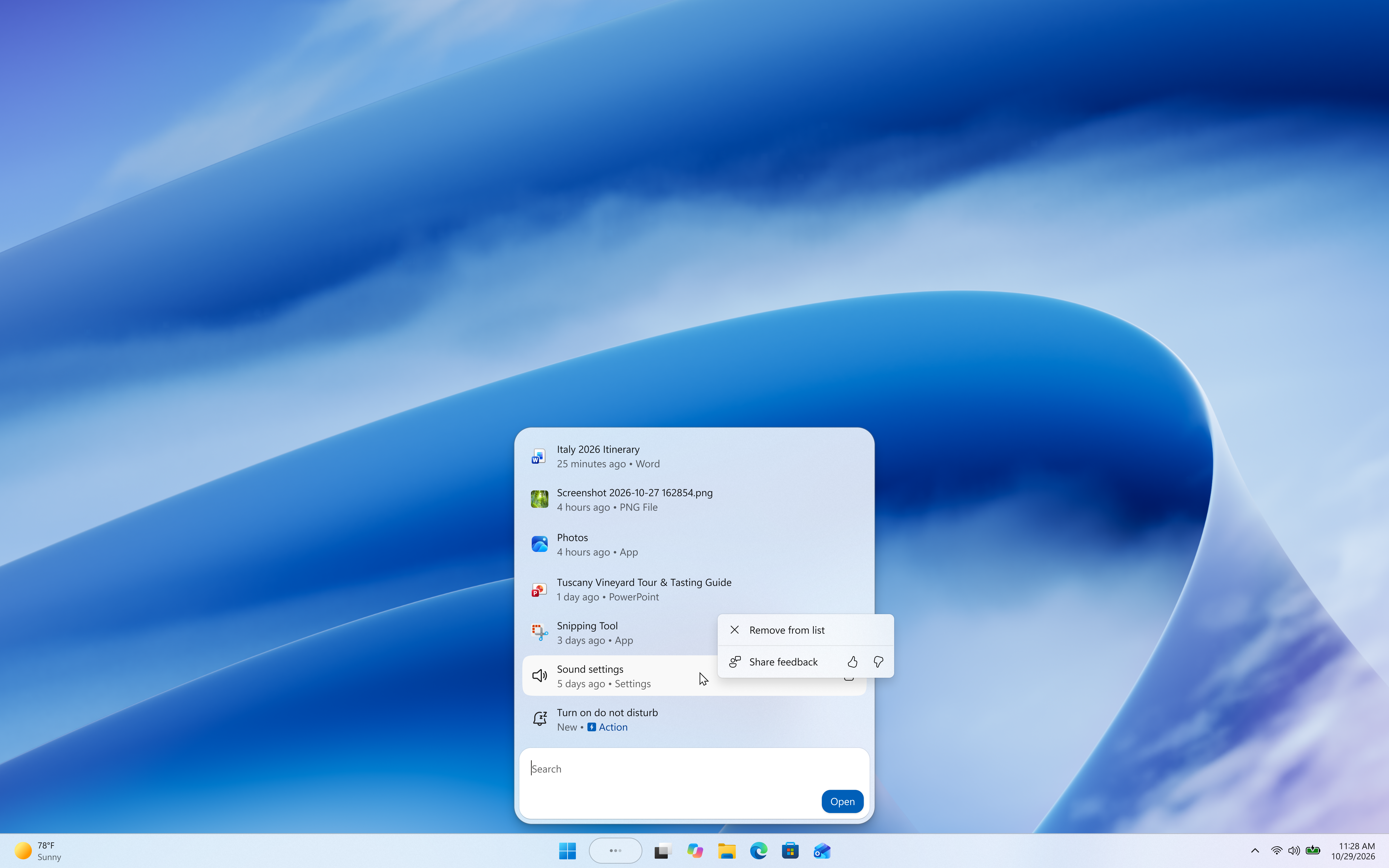
You can also use the thumbs up/down buttons in the context menu on any individual result or suggestion to provide feedback.
Frequently asked questions
Is the new Search experience available to everyone
No. It is initially available as a gradual rollout to eligible Windows Insiders. Installing the latest Insider Preview build doesn't guarantee that the experience is available immediately.
Which languages are supported?
The initial preview supports English only. Other languages aren't supported in this release.
Why don't I see a suggested action?
An action may be unavailable because of your device capabilities, system state, installed apps, account, market, language, or organization policy. Make sure your PC meets the requirements above, try a supported example from this article, and submit feedback.
Does Search complete actions automatically?
Search shows a result or action that you can review and select. Some actions may require another choice, confirmation, an app, or a connected service before they are completed.
Do I need Phone Link?
Only for phone actions. Finding content and using supported PC settings or app-window actions doesn't require Phone Link.
How do actions work?
We've configured the index to match user queries against a predefined list of supported actions quickly and efficiently. It is a small ML model that runs locally on the CPU to quickly understand what the user is asking for and match it to the right action. It’s not generative AI like an SLM or LLM.
How can I configure the new Windows Search experience?
To manage suggested content in search results, go to Start > Settings > Privacy & security > Search. For more information about privacy and Windows Search, go to Windows Search and Privacy.