You can easily resize pictures, text boxes, shapes, and WordArt in your Office file. You can also remove unwanted portions of a picture by cropping it.
Resize a picture, shape, WordArt, or other object
Select the picture, shape, WordArt, or other object to resize.
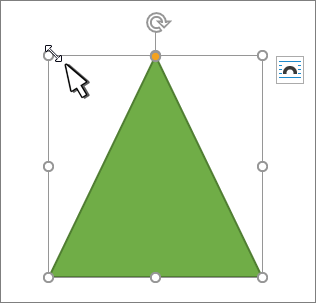
To increase or decrease the size in one or more directions, drag a sizing handle away from or toward the center, while doing one of the following:
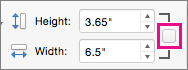
- To resize freely, turn off Lock aspect ratio in the Size dialog box.
- To keep the center in the same place, press and hold Ctrl while you drag the sizing handle.
- To maintain the proportions, press and hold Shift while you drag the sizing handle.
- To both maintain the proportions and keep the center in the same place, press and hold both Ctrl and Shift while you drag the sizing handle.
Note
Resizing a WordArt object doesn't resize the text, only the container. If you want to resize the text, select the text and change the font size on the Home tab.
Resize an item to an exact height and width
Select the picture, shape, WordArt, or other object to resize.
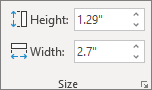
To resize multiple objects at the same time, press and hold Shift while selecting each object.Select Shape Format, Picture Tools Format, or Drawing Tools Format and enter the new measurements into Height and Width.
Note
If you don't see Height and Width, press the down arrow in the Size group.

If you're not able to change the height and width independently, you'll need to unlock the aspect ratio:
- Select the dialog box launcher
 in the Size group.
 - Clear the Lock aspect ratio check box.
Resize to an exact proportion
Select the picture, shape, WordArt, or other object to resize.
To resize multiple objects at the same time, press and hold Shift while selecting each object.Go to Shape Format, Picture Tools Format, or Drawing Tools Format, in the Size group, select the dialog box launcher
 .
.Note
If your screen size is smaller, you might need to select the down arrow in the Size group to see the dialog box launcher.
To choose between the original or a different proportion, select or clear Lock aspect ratio and enter a Scale percentage for Height or Width.