Align the page number to the left or center
Double-click the page number to edit the header.
Press Ctrl+L to put the page number on the left, or press Ctrl+E to center the page number.
When you're done, select Close Header and Footer.
Add text, like "p." or "Page" to the page number
Double-click the page number to edit the header.
Enter the text you want, such as p. or Page.
When you're done, select Close Header and Footer.
Add content, like the author name or current date, to the header
On the Insert tab, in the Header & Footer group, go to Header > Blank (Three Columns).
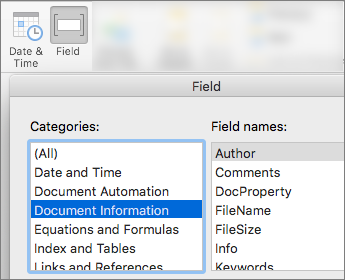
Replace the placeholders with your content. To insert content that comes from the document (like author and file name), use Document Info in the Insert group.
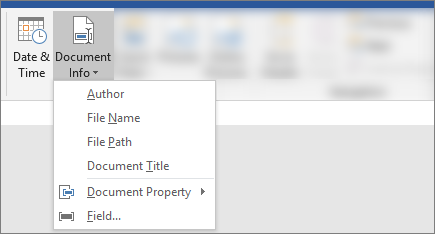
To add the current date, pick Date & Time on that same tab.Tip
If you want the printed document to always show the date it's printed, select Update Automatically.
Use one of the placeholders for the page number. On the Header & Footer Tools > Design tab, go to Page Number > Current Position, and choose Plain Number.

If you don't use all the placeholders, delete the ones you don't use.
When you're done, select Close Header and Footer.