To delete a page that contains text, graphics, or empty paragraphs in Word, select the content to delete, and press Delete.
To go to a specific page in a Word document:
- Click or tap anywhere in the page you want to delete, press Ctrl+G(Option+⌘+G on a Mac).
- In the Enter page number box, type \page.
- Press Enter on your keyboard, and then select Close.
- Verify that a page of content is selected, and then press Delete on your keyboard.
If the blank page is at the end of your document, it may be caused by Word's required end paragraph being pushed onto a new page. Because the end paragraph can't be deleted, use the steps below to make it fit on the preceding page and remove the blank page. The most reliable way is to make the end-paragraph very small (1 point):
Press Ctrl+Shift+8 (⌘+8 on a Mac) to show paragraph marks.
Select the paragraph mark.
Select inside the Font size box, type 01, and then press Enter.
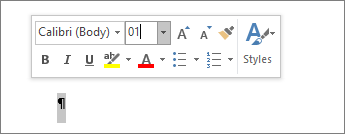
The paragraph now fits on the preceding page, removing the unwanted blank page.
Press Ctrl+Shift+8 again to hide the paragraph marks (⌘+8 on a Mac).
If that paragraph still doesn't fit on the preceding page, you can make the bottom margin smaller (Layout tab > Margins > Custom Margins, and set the bottom margin to something small, like 0.3 inches).
Tip
If the paragraph mark has a square bullet next to it, the paragraph might have the Page break before option turned on. To turn it off, right-click the empty paragraph, select Paragraph Settings (Home tab), and on the Lines and Page Breaks tab of the dialog box, uncheck Page break before.
Page breaks
Page breaks tell Word where to start a new page. A manual page break might be making an unwanted blank page in your document.
To see manual page breaks, switch to showing paragraph marks:
Press Ctrl+Shift+8 (⌘+8 on a Mac).
Now you can select the page break and delete it.

Section break problems
In the middle of a document, deleting section breaks can cause formatting problems. In these cases, try changing the section break to one that doesn't generate a new page. Here's how:
- Double select the section break.
- On the Layout tab, select the Breaks drop down and select Continuous.
- Select OK.
Odd, Even, and Next cause blank pages
Next Page, Odd Page, and Even Page section breaks might create a blank page in your document. If the blank page occurs at the end of your document and you have a section break there, place your cursor directly before the section break and press Delete.
Tip
To more easily find section breaks, try switching to Draft on the View tab.

