

Upon opening an existing document in Word for Windows or Mac there are three modes that may be available to you: Viewing, Reviewing and Editing. The Viewing mode is always available to anyone accessing a document. Permissions are needed for the other modes. The mode-switcher menu enables you to change modes accordingly.
About the modes
| Viewing | In this read-only mode no revisions are allowed. This ensures that you won't inadvertently type on the canvas while reading. |
|---|---|
| Reviewing | This mode enables you to add comments and suggest revisions. It automatically turns on Track Changes Just Mine. |
| Editing | Available if you've been granted permissions, this mode provides full editorial access to make and save changes in the document. |
Switching modes
Once in a document, you can see the currently selected mode and change mode via the document mode-switcher menu. Select a mode as follows:
In the opened Word document, find the mode-selection button in the ribbon, located top-right, by the Share button. The mode-selection button name will reflect the current mode (including any mode change you might subsequently make).
Note the available modes. If you have edit permissions for this document, all modes will be available to you.
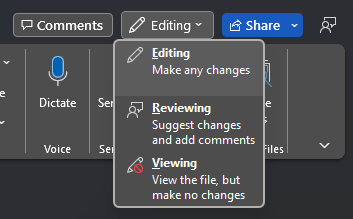
As allowed, select Editing, Reviewing or Viewing to change your working mode.
Confirm your selection in the revised name of the menu button in the ribbon.
See also
Learn more here: Review mode in Word