

You can control access to a document by implementing a password for it. Passwords are case-sensitive and can be a maximum of 15 characters long. Create a strong password, ideally one that you can easily remember. But in case you might forget, you should also keep a copy of it in a safe place.
If you lose or forget your document password, Word won't be able to recover it for you. It may be possible for your IT admins to help with password recovery, but only if they had implemented the DocRecrypt tool before you created the document password.
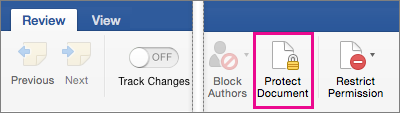
- Go to File > Info > Protect Document > Encrypt with Password.
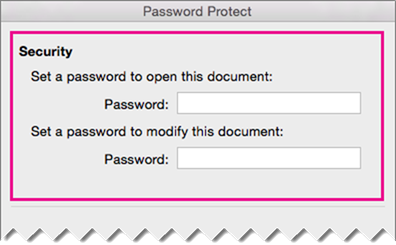
- Type a password, press OK, type it again and press OK to confirm it.
- Save the file to make sure the password takes effect.
IT admin password-recovery tool
If you're concerned about people in your organization losing access to password-protected Microsoft 365 files, consider implementing the DocRecrypt tool. Note that DocRecrypt can only help to recover files that were encrypted after it was implemented. For more information see Remove or reset file passwords using DocRecrypt.