
Note
Background removal is available in Office apps that support picture editing tools (such as Word, Excel, and PowerPoint). Availability and controls vary by app and version.
You can remove a background from a picture to accent the subject or to remove distracting detail. Use the automatic background removal or draw lines to indicate the areas to keep and remove.
If the default area isn't correct, do one or both of the following:
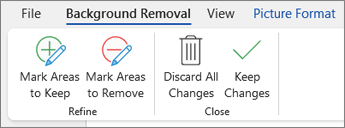
- Select
 Mark Areas to Keep to mark the areas on the picture that you want to keep.
 - Select
 Mark Areas to Remove to mark the areas on the picture that you don't want to keep.
- Select
When you're done, select Keep Changes or
 Discard All Changes.
Here are some tips:
- Depending on the background, try lassoing the areas to keep or remove.
- For gaps in lassoed or missed areas, draw short strokes or lines.
- You can usually undo the last part you kept or removed by pressing Ctrl+Z.
- Simpler backgrounds are easier to remove than complex or detailed ones.
Important
Background removal isn't available for vector graphic files, such as Scalable Vector Graphics (SVG), Adobe Illustrator Graphics (AI), Windows Metafile Format (WMF), and Vector Drawing File (DRW).