

Microsoft Editor runs in Word for Microsoft 365 to analyze your document and offer suggestions for spelling, grammar, and stylistic issues, like making sentences more concise, choosing simpler words, or writing with more formality.
To use Editor, on the Home tab choose Editor.

Reviewing suggestions
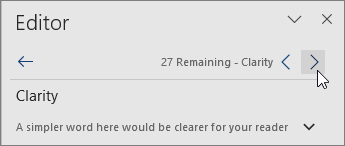
To focus on the issues you care most about, choose a correction or refinement type, like Grammar or Clarity. Then, use the arrows near the top of the pane to step through each of that type of issue.
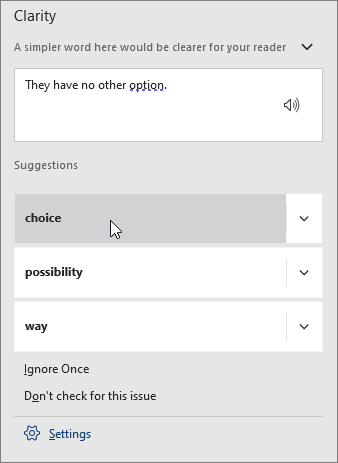
Choose a suggestion to incorporate it into your document. If you don't like the suggestion, select Ignore once. Or, if you never want this type of suggestion, select Stop checking for this.
Note
If you change your mind about an issue you ignored, close and reopen the document, and go back to Editor. Editor will find the issue again.
Tailor what Editor checks for
By default, Editor checks for several categories of issues, and the suggestions may or may not suit your writing style. To finely tune Editor for suggestions you want, do the following:
In the Editor pane, in the Corrections section, select Grammar.
In the Grammar dialog, select More options (the ellipses (…)) and then select Customize suggestions.
Scroll through the list of options. Select issues you want Editor to check, and clear the issues you want Editor to ignore.
Note
Selecting Reset to default returns to the default settings.
Choose OK.
Tip
Editor is designed to empower you to bring out the best in your writing. We are continually making updates to its suggestions and experimenting to learn which suggestions are most welcome. If you have feedback for us, select Give Feedback to Microsoft in the lower-right corner of the Word window to give feedback.
Editor is running, even when the pane is closed
You might notice Editor’s red, blue, and purple underlines in your document even when the Editor pane is closed. That’s because Editor is always running in the background, checking for spelling, grammar, and some style issues.
Right-click the underlined text to see the suggestion. Use context menu to:
- Listen to the suggestion by clicking the arrow next to the suggestion and then choosing Read Aloud.
- Skip this instance of the issue by choosing Ignore Once.
- Tell Editor to stop checking for this issue by choosing Don’t check for this issue.
- Fine tune the settings for this type of issue by choosing the Options link.
- Get more information about the issue by choosing See More.

Checking more than one language
Your document might be written in more than one language, or you might want to switch to another language for Editor to check. If you are set up to use multiple authoring languages (File > Options > Language), Word detects the language you’re writing in, and Editor will check for issues in that language.
However, you might be writing in a language that Word doesn’t detect automatically. In that case, you can get Editor to check text in that language by selecting the text and going to Review > Language > Set Proofing Language, and then choose your language.

When Editor is checking more than one language, the Editor pane lists corrections and refinements for each language in the document.

For information about the issues that Editor checks in various languages, see Editor's spelling, grammar, and refinement availability by language.
Editor on the web
When you work on documents in Word on the web, Editor provides a rich set of features that are coming soon to Word for Windows. Even when you’re not using Word, the Editor browser extension helps you with writing on websites like LinkedIn, Twitter, Facebook, and Gmail.


See also
For more information about Microsoft Editor, see Microsoft Editor checks grammar and more in documents, mail, and the web.
For more topics on spelling and grammar, see Spelling and grammar in Word.
To try Microsoft Editor for yourself, using a Word template.