

Note
These steps apply to Word for Windows (desktop). The steps and options may differ in Word for Mac or Word for the web.
Use Styles
Styles templates apply a consistent font, font size, font color, and spacing to headings, paragraphs, and titling throughout your document.
- Select the words, paragraph, list or table to edit.
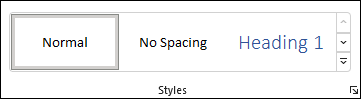
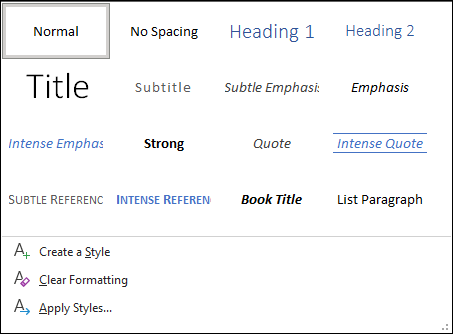
- On the Home tab, select a style.
If you don't see the style you want, click the More button to expand the gallery.
Apply Themes
Themes add a professional look to your document.
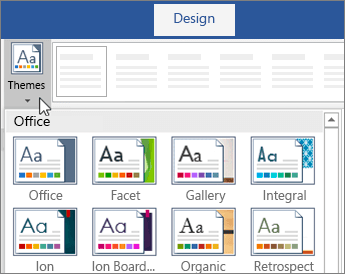
- Select Design > Themes.
- Point to a theme to preview how it will look.
- Select the theme you want.
Check spelling and grammar
Word marks misspelled words with a red squiggly underline and grammar mistakes with a blue double underline.
- Right-click the word.
- Select a correction, or select Ignore.
Note
Spelling and grammar check work a little differently in newer versions of Word and Microsoft 365. For more, see Editor - your writing assistant.

Find and replace text
- Select Home > Replace.
- For Find what, enter a word or phrase to search. For Replace with, enter the new text.
- Select Find next, and then select:
- Replace to replace the first instance, or
- Replace all to replace all instances.

Next:Collaborate in Word