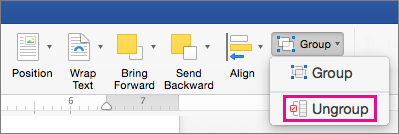
To move a group but leave one shape or picture behind, or make extensive changes to one shape without changing the other shapes in the group, you should first ungroup the grouping of objects.
Note
This content applies to the desktop versions of Word. Some features may not be available in Word for the web or mobile apps.
Ungroup shapes, pictures, or other objects
Select the group that you want to ungroup.
Do one of the following:
- To ungroup pictures, go to Picture Format or Picture Tools Format > Group
 > Ungroup.

- To ungroup shapes and objects, go to Shape format or Drawing Tools Format > Group
> Ungroup.

- To ungroup pictures, go to Picture Format or Picture Tools Format > Group