
A bookmark identifies a specific word, section, or location in your document that you name and identify for future reference. For example, you might create a bookmark to identify text that you want to revise at a later time. Instead of scrolling through the document to locate the text, you can quickly go to it by using a bookmark.
Bookmark the location
Select text, select a picture, or place the cursor in the location where you want to add a bookmark.
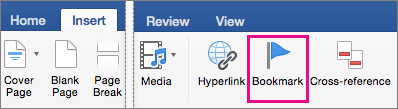
On the Insert tab, select Bookmark.
Under Bookmark name, type or select a name for your bookmark, then select Add.
Note
Bookmark names must begin with a letter, can be up to 40 characters long, and cannot contain any spaces. Bookmarks may contain letters, numbers, or underscores ( _ ).
Go to the bookmark
After creating your bookmarks, you can jump to them at any time or add links to them within your document.
Jump to a bookmark
On the Edit menu, select Find > Go To.
Under Go to what, click Bookmark.
Under Enter bookmark name, select the bookmark that you want.
Select Go To, and then select Close to view the bookmark in your document.
Link to a bookmark
Add hyperlinks that will take you to a bookmarked location in the same document.
Select the text or object you want to use as a hyperlink.
Control + click the text or object, and then select Hyperlink from the menu.
In the Insert Hyperlink dialog box, select This Document and then select the arrow next to Bookmarks.

In the list, select the bookmark that you want to link to.
Note
To customize the Screen Tip that appears when you rest the pointer over the hyperlink, click ScreenTip, and then type the text that you want.
Select OK.
For more information on hyperlinks, see Create or edit a hyperlink.
Show bookmarks in a document
On the Word menu, select Preferences.
In the Word Preferences dialog box, select View.
Under Show in Document, select the box next to Bookmarks.

Note
Word displays a bookmark on text or a picture as brackets around the item. Word displays a bookmark of a location as an I-beam. The brackets and I-beams do not appear when the document is printed.
Select the red circle to close the dialog box.
Delete a bookmark
Select Insert > Bookmark.
Select the name of the bookmark that you want to delete, select Delete.
Select Close.
Tip
To delete both the bookmark and the text or object that is associated with that bookmark, in the document, select the text or object, and then press DELETE.