

Note
The steps in this article primarily apply to Word for Windows (including Word with a Microsoft 365 subscription). Quick Parts are also available in new Outlook, but some options and steps for creating and managing Quick Parts are different.
You can use the Quick Part Gallery to create, store, and reuse pieces of content, including AutoText, document properties (such as title and author), and fields. These reusable blocks of content are also called building blocks. AutoText is a common type of building block that stores text and graphics. You can use the Building Blocks Organizer to find or edit a building block.
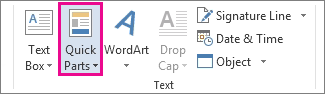
To open the Quick Part Gallery, on the Insert tab, in the Text group, select Quick Parts.
Create a Quick Part
Select the phrase, sentence, or other portion of your document that you want to save to the gallery.
On the Insert tab, in the Text group, select Quick Parts, and then select Save Selection to Quick Part Gallery.
In the Create New Building Block dialog box, change the name and add a description if you like, and select OK.
Note
To save a selection as AutoText, on the Insert tab, in the Text group, click Quick Parts > AutoText > Save Selection to AutoText Gallery.
Add a Quick Part to a document
Place your cursor where you want to insert a selection from the Quick Parts Gallery.
On the Insert tab, in the Text group, select Quick Parts, and then choose the sentence, phrase, or other saved selection you want to reuse.
Note
If you saved the item as AutoText, click Insert > Quick Parts > AutoText to find and click the selection.
Change the Content of a Quick Part
You can change a Quick Part by replacing the building block. You insert the building block, make the changes that you want, and then save the building block with the same name.
Important
To replace the original entry in the gallery, the name, category, and gallery must be the same as the original.
Click where you want to insert the building block.
On the Insert tab, select Quick Parts, and then select Building Blocks Organizer. If you know the name of the building block, select Name to sort by name.
Select Insert.
Make your changes to the building block.
Select the revised text.
To store paragraph formatting—including indentation, alignment, line spacing, and pagination—with the entry, include the paragraph mark ( ¶ ) in the selection.Note
To view paragraph marks, on the Home tab, in the Paragraph group, click Show/Hide.
On the Insert tab, select Quick Parts, and then select Save Selection to Quick Part Gallery.
In the Create New Building Block dialog box, type the original name, category, and gallery for the building block entry, and then select OK.
When asked whether you want to redefine the building block entry, select Yes.
Rename a Quick Part
- On the Insert tab, select Quick Parts, and then select Building Blocks Organizer.
- Select the name of the building block that you want to rename, and then select Edit Properties.
- In the Modify Building Block dialog box, type a new name for the entry, and then select OK.
- When asked whether you want to redefine the building block entry, click Yes.
Delete a Quick Part
- Open a document that contains the Quick Part that you want to delete.
- On the Insert tab, select Quick Parts, and then select Building Blocks Organizer. If you know the name of the building block, select Name to sort by name.
- Select the entry, and then select Delete.
- When asked whether you are sure you want to delete the building block entry, select Yes.
The building block that you deleted is no longer available in galleries, although the content might still appear in the document.