
Copilot in Word can help you draft new content to get past the blank page, rewrite and refine your writing, and comprehend long or complex documents so you can quickly find what matters. The goal is simple: save time, remove the drudgery, and help you make progress, whether that means polishing a final draft or simply understanding a document faster.
Copilot meets you where you already work, in the Word canvas and the chat pane, so you can simply describe the outcome you want and watch the document adapt. And because your documents don’t live in isolation, Copilot can draw on the wider context of your work, including your files, emails and meetings to keep content grounded in what’s current and relevant. (Available to users with an eligible Microsoft 365 subscription or Microsoft Copilot license.)
Note
If you don’t see Copilot or a specific Copilot capability, it may not be included with your Microsoft 365 subscription or enabled by your organization’s settings. Learn which Copilot license you have.
How Copilot helps you work in Word
Create: Start a draft from a prompt, outline, notes, or referenced file.
Refine: Rewrite selected text, adjust tone or make content more concise.
Comprehend: Summarize a document, ask questions, or pressure-test ideas.
Collaborate: Work in the original file with clearer, reviewable changes instead of creating extra copies.
Stay grounded: When available, use relevant files or work context to help Copilot produce more useful results.
Open Copilot in Word
Open a document in Word.
Select the Copilot Dynamic Action Button in the corner of your document. For more information about the Copilot button, see The Copilot Dynamic Action Button.
Copilot opens in the chat pane with Edit mode turned on. Type a prompt, choose a suggested action, or ask a question about your file. To use this feature, an eligible Microsoft 365 subscription and/or Microsoft Copilot license is required.
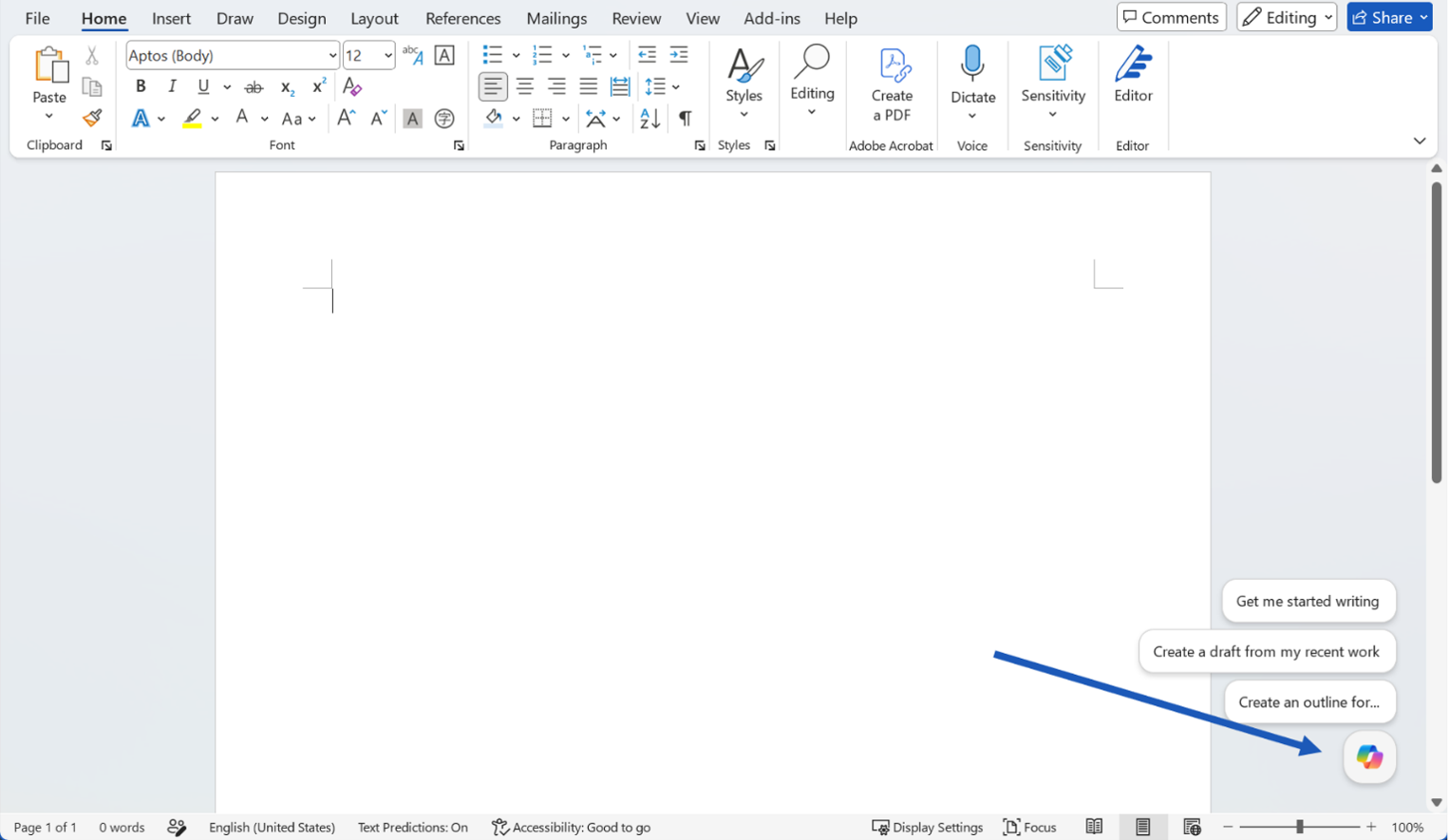
Start a draft
In the chat pane, type a prompt describing the outcome you want, and point Copilot to any source material it should use. Copilot will also provide suggestions that you can click on and tailor to your preference.
For example:
Draft a customer brief about [initiative] for [audience]. Include background, benefits, risks, and next steps.
Create an outline for a project update with sections for status, milestones, risks, and decisions needed.
After Copilot generates content, review the result. You can keep it, discard it, or continue refining it with a follow-up prompt.
Tip
Prompts do not need to be perfect. Start with the outcome you want, then add details such as length, format, tone, or source material.
Improve an existing document
When you already have content in your document, use Edit with Copilot to improve it. For a quick change to a specific passage, select the text and choose a preset options such as Rewrite.
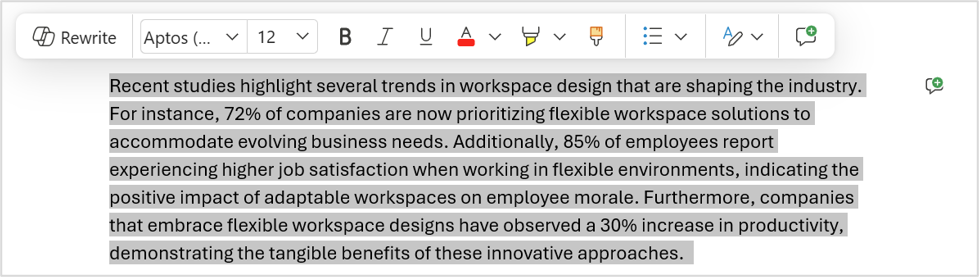
When you want something more specific, describe the change in your own words in chat pane, anything from a small tweak to a document-wide revision, and Copilot makes it for you. To learn more, see Edit with Copilot in Word.
Try prompts like:
Make this section more concise and customer-ready without changing the meaning.
Reorganize this section so the problems, risks and next steps are easier to follow.
Add a short conclusion with next steps.
Tip
Working in a shared document? When Copilot plans to make changes to those documents, it shows you a preview of suggested changes in chat first. Nothing is added to the document until you review and approve it, so you don’t end up sharing something with collaborators by accident.
Understand and act on document content
Copilot can help you understand a document before you edit it. Ask for a personalized summary, key takeaways, open questions, or action items. You can also ask Copilot to explain a section or compare ideas in the document. Select Chat only to have Copilot to respond to you in chat and don’t make any changes to your document.
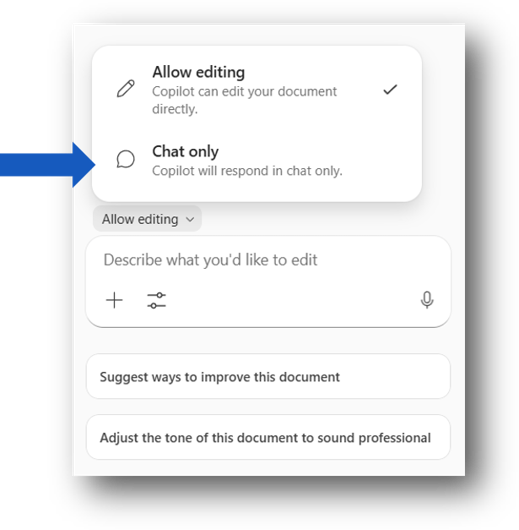
For example:
Summarize this document in five bullets.
What decisions are needed before this document is ready to share?
What parts of this document may be unclear to a customer?
You can also see a summary at the top of the page when you open a Word document, depending on your settings and license. See Create a summary of your document with Copilot in Word | Microsoft Support.
Other notes and tips
Type / in Copilot chat pane and start typing the name of a document, email, or meeting you want Copilot to use. You can also select items from the menu that opens and choose your document from the list.
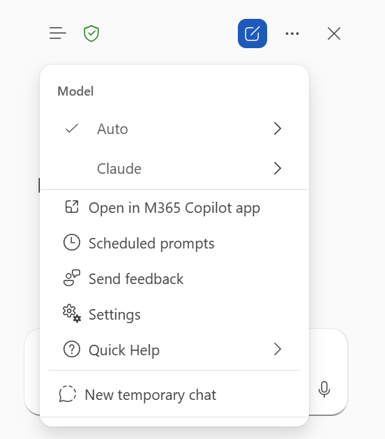
Use the Model Selector to switch models in seconds. Pick a level of reasoning, choose Auto to let Copilot decide, or select a supported Model provider such as OpenAI or Claude.
Copilot works within Word and your Microsoft 365 content and does not connect to external tools.
Copilot supports fewer languages than the Word interface, so availability can vary by language. Learn about supported languages for Copilot.
Availability
Copilot experiences may depend on your Microsoft 365 subscription, Microsoft Copilot license, organization settings, and platform.
Privacy
Copilot and Microsoft 365 are built on Microsoft's comprehensive approach to security, compliance, and privacy.
For more information about privacy, see the following information:
If you're using Microsoft Copilot in your organization (with your work or school account), see Data, Privacy, and Security for Microsoft Copilot.
If you're using Copilot in Microsoft 365 apps for home (with your personal Microsoft account), see Copilot in Microsoft 365 apps for home: your data and privacy.
Send feedback
If there's something you like about Copilot, or if something does not work as expected, submit feedback to Microsoft by selecting the thumbs-up or thumbs-down button in the response output.
Try Copilot in Word for the Web.
Learn more
Frequently asked questions about Copilot in Word
Create a summary of your document with Copilot in Word
Microsoft Copilot supported languages