
Outlook for Macis saate mitme kalendri kuvada korraga kõrvuti või kombineerituna virnastatud ülekattevaates.
Kalendri kuvamine uues aknas

- Valige navigeerimispaanil Calendar kalender või kalendrid, mida soovite vaadata.
- Liikuge kursoriga kalendri nimest paremale, kuni kuvatakse kolmikpunkt (3 punkti).
- Valige Ava uues aknas.
Kalendrite kõrvuti kuvamine
Valige navigeerimispaanil Calendar kalender või kalendrid, mida soovite vaadata.
Valige navigeerimispaanil Calendar kaks või kolm kalendrit, mida soovite kuvada.
Märkus.
Kõrvutivaate kuvamiseks tuleb valida vähemalt kaks kalendrit ja maksimaalselt kolm kalendrit.
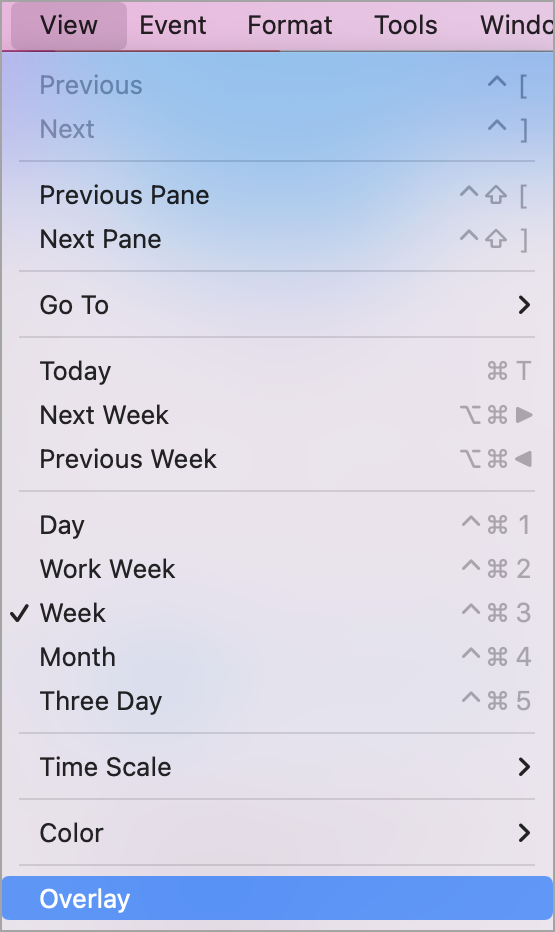
Valige põhimenüüs Kalendriperioodi> (Päev, Töönädal, Nädal või Kolm päeva) >ülekate.
Märkus.
Kuukalendreid ei kuvata ülekattefunktsiooniga.
Kõrvuti kalendri sulgemine

- Valige kalender või kalendrid, mille soovite sulgeda.
- Valige iga kalendri sulgemiseks x .

Seotud artiklid
Mitme kalendri korraga kuvamine Outlooki Windowsi ja veebirakenduses