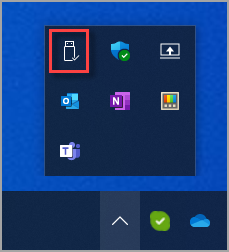
Tietojen menettämisen välttämiseksi poista aina turvallisesti laitteet, kuten USB-muistitikkuja tai ulkoisia kiintolevyjä, ennen kuin irrotat ne. Windowsissa voit käyttää poista laitteisto turvallisesti alla kuvatulla tavalla.
Ilmaisinaluekuvakkeen käyttäminen
Napsauta tehtäväpalkin ilmaisinalueen alueella hiiren kakkospainikkeella Poista laite turvallisesti ja poista tietoväline -kuvaketta.

Jos Poista laite ja poista tietoväline turvallisesti -kuvake ei ole näkyvissä, valitse ensin Näytä piilotetut kuvakkeet
 ja napsauta sitten hiiren kakkospainikkeella Poista laite turvallisesti ja poista tietoväline -kuvaketta.
Vihje
Jos Poista laite ja poista tietoväline turvallisesti -kuvake ei edelleenkään ole näkyvissä, kun olet valinnut Näytä piilotetut kuvakkeet
, katso osio Poista laite turvallisesti ja poista media turvallisesti -kuvake alla olevaan ilmaisinalueelle lisätäksesi sen ilmaisinalueelle.Valitse ponnahdusvalikosta Poista <laite> poistettavalle laitteelle.
Ilmoitus Turvallinen poistaa laitteisto näkyy ja laite katoaa Poista laite turvallisesti ja poista tietoväline turvallisesti -valikosta. Laite voidaan poistaa turvallisesti.
Lisää Poista laite turvallisesti ja poista tietoväline -kuvake ilmaisinalueelle
Napsauta tehtäväpalkkia hiiren kakkospainikkeella ja valitse
 Tehtäväpalkin asetukset.
Tai
Valitse seuraava Mukauttaminen-tehtäväpalkin > pikakuvake:
Laajenna Mukauttaminen-tehtäväpalkki-ikkunassa >Muut ilmaisinalueen kuvakkeet.
Etsi Poista laite turvallisesti ja poista tietoväline käytöstä vierittämällä.
Varmista , että Poista laite turvallisesti ja Poista tietoväline-asetus on käytössä.
Poista laite turvallisesti ja poista tietoväline -kuvakkeen pitäisi nyt näkyä tehtäväpalkin ilmaisinalueella.
Huomautus
Poista laite ja poista tietoväline turvallisesti -kuvake ei välttämättä näy tehtäväpalkin ilmaisinalueella seuraavissa tilanteissa:
- Siirrettävää laitetta ei ole yhdistetty Windows-laitteeseen.
- Windows-laite ei tunnista laitetta, joka on poistettava.
Laitteen poistaminen Asetukset-sovelluksella
Valitse Käynnistä
 ja valitse sitten Asetukset
 >Bluetooth & laitteet
 >Laitteet
 .
.Tai
Valitse seuraava Bluetooth-& laitteiden > laitteiden pikakuvake:
Etsi Bluetooth-& laitteet > -pikaikkunanMuut laitteet -osiosta laite, joka on poistettava.
Kun haluamasi laite on löydetty, laajenna se valitsemalla se.
Valitse Poista tämä laite -kohdan vierestä Poista. Varmista, että Poista on välittömästi poistettavan laitteen alapuolella oleva laite.
Kun laite katoaa Muut laitteet -osasta, se voidaan poistaa turvallisesti.