
With so many Outlook apps and services, it can be confusing to know which version you're using.
To find out which version of Outlook you're using, select a tab below.
There are now two versions of Outlook for Windows: new Outlook for Windows and classic Outlook for Windows.
To find out whether your Outlook for Windows is the new or classic version, look for the
 Settings in the top right corner. If you have the Settings button, you have the new Outlook. If the Settings button is missing, you're using classic Outlook.
New Outlook
 This is the new Outlook mail icon.
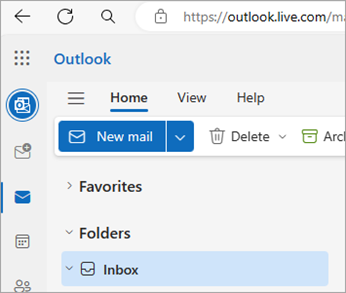
When you open new Outlook, you'll see the following tabs on the ribbon: Home, View, and Help. New Outlook includes a
Settings option which is available in the navigation header. Settings is where you go to customize your Outlook experience.

New Outlook for Windows is available now. For more information about how to get new Outlook for free, see Getting started with the new Outlook for Windows and Start using new Outlook for Windows.
Check which version of new Outlook you're using
To check what version number of Outlook you're running:
- Select
Settings .
- Choose General, then About Outlook. The version information will be on the right.

Classic Outlook
 This is the classic Outlook for Windows icon.
The File tab in the classic Outlook takes you to the area of the app where you can find information about the accounts you're using in Outlook, which product version you're running, and the Options area which is where you can customize your experience.

Classic Outlook is a desktop app that must be downloaded and installed. The classic Outlook app is included with many Microsoft 365 subscriptions that include the desktop apps, and versions of Office such as Office Home & Business.
Check which version of classic Outlook you're using
- In Outlook, choose File.
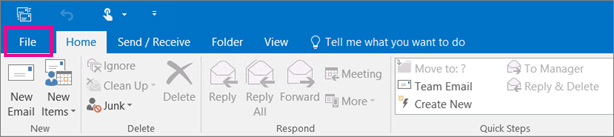
- Select Office Account. If you don't see Office Account, choose Help. You'll see the product version on the right side of the page.
- The Outlook version and build number is under Product Information.
- If you need to know whether you're using the 32-bit version or the 64-bit version of Outlook, select About Outlook.

- About Outlook contains additional details about your version.

My Outlook doesn't look like this, but I'm using a Windows 10 or Windows 11 PC
If you're using Windows 10 or Windows 11, and your Outlook doesn't match the images here, there are two possible reasons.
You're using an older, unsupported version of Outlook, you can often find the Outlook product version by selecting Help > About.
You're using Windows 10 or Windows 11 Mail. Windows 10 or Windows 11 Mail is a free program included with all Windows 10 or older Windows 11 computers. If you're using Windows 10 Mail, your Inbox will look something like this.

Important
Changes are coming to these versions of Outlook. Learn more in Outlook for Windows: The Future of Mail, Calendar, and People on Windows 11.



Related articles
What's the difference between a Microsoft account and a work or school account?