Stay up to date with Widgets in Windows

적용 대상
Windows 11

Summary

Widgets in Windows are interactive elements that display dynamic content and provide quick access to various apps and features. You can view your location's current weather conditions directly on the taskbar and hover over the icon to see concise, scannable information on topics like sports, stocks, local news, and breaking headlines. Widgets are designed to help you staying informed and organized by presenting personalized information at a glance.

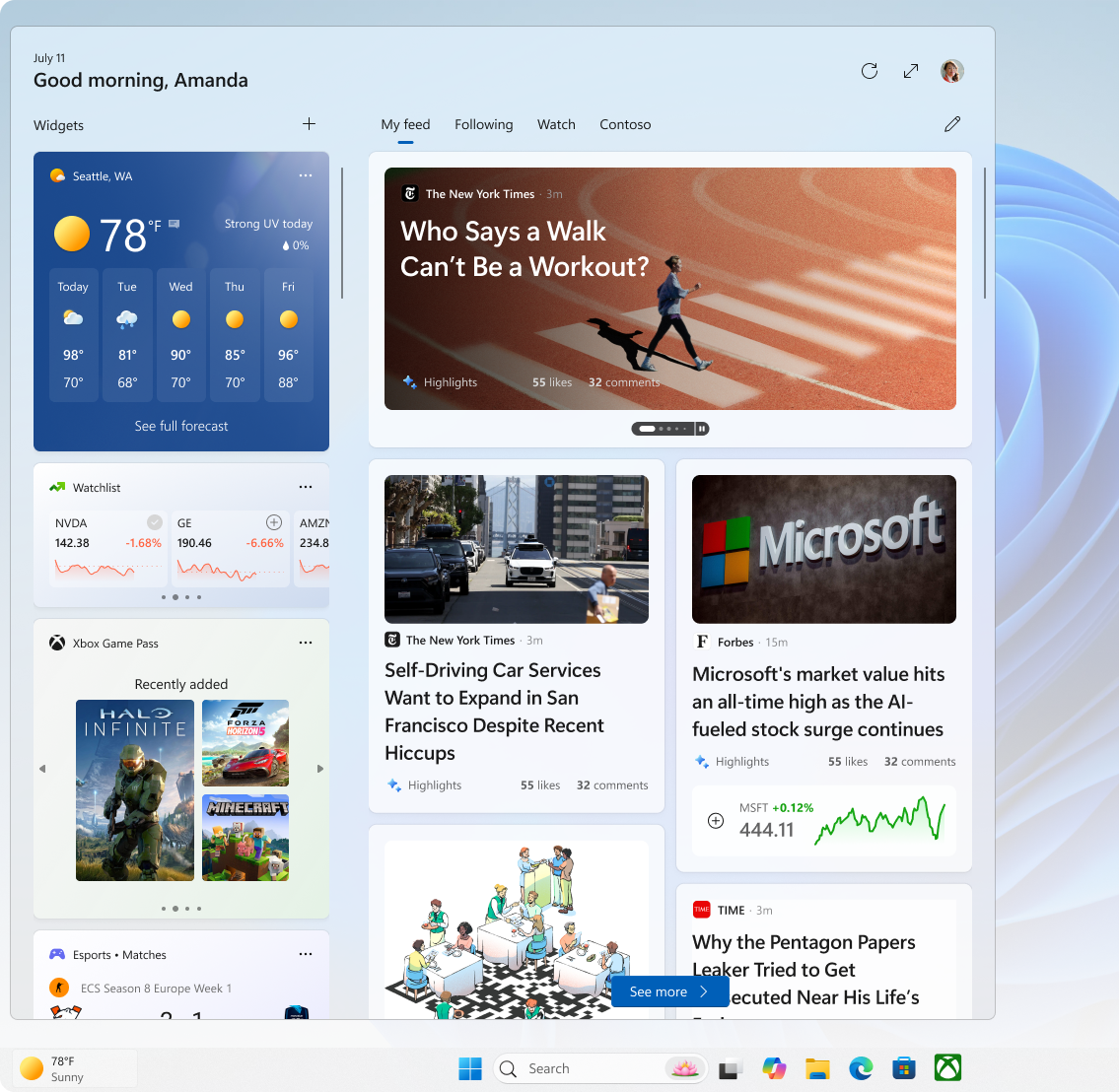
Widgets are displayed on the Widgets board, which contains a collection of cards, each representing a widget with relevant information and actions related to an app. On the Widgets board you can discover, pin, unpin, arrange, resize, and customize widgets to reflect your interests.

Widgets can show a variety of information, including:

  • Weather: Current conditions and forecasts for your selected location
  • News: Latest headlines from sources you trust
  • Traffic: Real-time traffic updates for your route
  • Stocks: Updates on your favorite stocks and market trends
  • Photos: A slideshow of your recent photos

Screenshot of the widget are showing the widget board and feeds.

Note

Widgets are not intended to replace full applications but provide a convenient way to access important information and perform quick actions without launching the associated app or website. They are refreshed dynamically throughout the day to keep the content current and relevant.

You can access the Widgets board either by:

  • Hovering over or selecting the Widgets area on the taskbar
  • Using the Windows key  WindowsLogo  + W shortcut
  • Swiping from the side of the screen

Configure Widgets settings

The following sections describe common operations to customize your Widgets experience. Expand each section to learn more:

Sign in and out

By default, the Widgets board is personalized using the preferences of the Microsoft account used to sign in to Windows. You can sign out from the Widgets board or choose to sign in with a different Microsoft account.

To sign out from the Widgets board:

  1. Open the Widgets board.
  2. Select your user account button Contact .
  3. Select Sign Out.

If you want to sign in with another account, select the Sign in option displayed on the banner when opening Widgets.

Configure your language and region

By default, the language and the content displayed on the Widgets board is determined by your Windows display language and Country or region settings. To change the language and content used by Widgets:

  1. Open the Widgets board.
  2. Select your user account button Contact .
  3. From the Language and content dropdown, select your preferred language.

Show or hide your feed

The feed is the stream of news content displayed on the Widgets board. If you prefer to hide the feed:

  1. Open the Widgets board.
  2. Select the settings button Settings .
  3. Select the option Show or hide feeds and select the option Feed to Off.

Expand the Widgets board

If you want your board to take up more space so you can access more widgets at a glance, use the expand button FullScreen on the Widgets board. The expand button changes to a collapse button BackToWindow after you use it so you can collapse the size of your Widgets board as needed.

Open on hover

If you don't want the Widgets board to open on hover:

  1. Open the Widgets board.
  2. Select the settings button Settings .
  3. Toggle the option Open Widgets board on hover to Off.

Configure notifications

In addition to receiving live updates on the taskbar from the weather widget, you can also receive updates from other widgets such as sports, finance, and breaking news.

Rotating announcements

Widgets display weather information on the taskbar most of the time. When something important happens related to one of your other widgets of feeds, you might receive an announcement from that widget.

Screenshot of the taskbar showing a finance news.

These announcements are meant to be quick and glanceable. If you don't interact with them, the taskbar will return to displaying weather information.

Badges

A badge notification might appear on your taskbar for notifications that need to persist for longer than a few seconds, such as severe weather alerts or breaking news.

Screenshot of the taskbar showing the badge on a widget.

When you open the Widgets board, a banner will appear at the top of the board providing more information on what triggered the notification badge.

Note

When you're in a focus session, widgets' announcements and badges are not displayed on the taskbar.

To configure notifications on the taskbar for your widgets:

  1. Open the Widgets board.
  2. Select the settings button Settings  > Notifications.
  3. Toggle the option Show notification badges on the taskbar to On to Off.
  4. Toggle the option Show announcements on the taskbar to On to Off.

To personalize your notifications experience:

  1. Open the Widgets board.
  2. Select your user account button Contact .
  3. Select the Notifications tab and customize the type of notifications you want to receive. 

Remove Widgets from the taskbar

To show or hide Widgets from the taskbar:

  • Right-click on the taskbar and select taskbar settings Settings .

  • Under Taskbar items, toggle the Widgets switch to On or Off

To learn more about taskbar customization options, see Customize the Taskbar in Windows.

Note

Even if you remove Widgets from the taskbar, you can still access the Widgets board by using the Windows key  WindowsLogo  + W shortcut or by swiping from the side of the screen.

Personalize your feed

Your feed, which is the stream of news content displayed on the Widgets board, will become more personalized over time. The following sections describe common operations to personalize your feed. Expand each section to learn more:

Configure your interests and followed sources

  1. Open the Widgets board.
  2. Select your user account button Contact .
  3. In the Discover tab, find the topics of interests and publishers, and select them.
  4. View and unfollow your followed topics or publishers in the Following tab.
  5. View and unblock any blocked topics or publishers from the Blocked tab.

Fine-tune your news content

You can fine-tune your feed from within an individual news story too.

  • To remove an article from your feed, select the Hide this story  ChromeClose button in the upper corner of the article. You can then provide feedback that you are not interested in the story, you don't like the source, or that you want to report an issue
  • Select the More like this (thumb up) or Fewer like this (thumb down) buttons in the lower corner of a news story to receive more news of what you care about or less of what you don't. You can also choose to hide stories from the story's publisher

View updated content in your feed

Updated content will appear in your feed when there is new content that meets your personalization settings. Your feed learns about you over time, so you might not always see changes right away.

Signing in to Windows and Widgets with the same Microsoft account helps ensure that your news feed personalization is available across Widgets, apps, and devices.

Customize the Widgets board

The following sections describe common operations to configure the Widgets board. Expand each section to learn more:

Install and pin a widget

You can discover and install new widgets for supported apps by visiting the Widgets page in the Microsoft Store.

Pinning a widget keeps the widget in a predictable and easily accessible location. Pinned widgets have a Pin icon  Pinned  in the upper corner. 

To pin widgets to your Widgets board, select the more options  More button in the upper corner of the widget, and then select Pin widget.

Unpin a widget

To unpin a widget from the Widgets board, select the more options  More button in the upper corner of the widget, and then select Unpin widget.

Note

A widget that you unpin might still appear on your board when it is relevant to your interests. To completely remove a widget from appearing in your Widgets board, select the more options  More button in the upper corner of the widget, and then select Hide this widget.

Move a widget

To move a pinned widget to another spot on your Widgets section of the board, select the widget header and drag the widget to a new location within the pinned section. 

Resize a widget

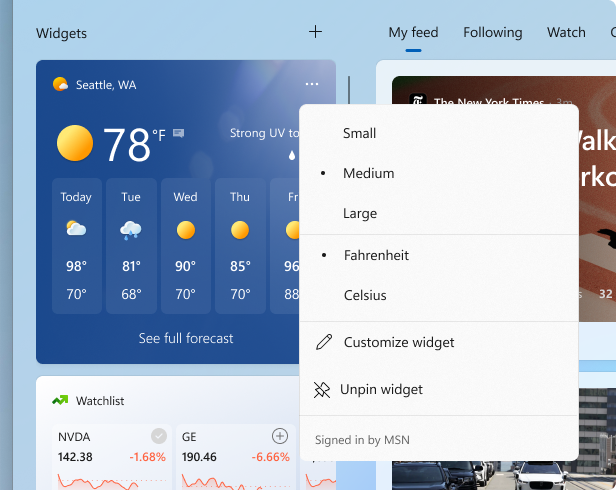
To make a widget larger or smaller in the pinned section, select the more options  More button in the upper corner of the widget, and then select Small, Medium, or Large. 

Note

Some widgets might only offer one or two sizes.

Customize a widget

To edit a widget, select the more options  More button in the upper corner of the widget, and then select Customize widget.

Editing a widget gives you access to customization options like changing the city for your weather widget or updating the watchlist for your stocks' widget.

Hide a widget

To hide a widget from appearing in your Widgets board, select the more options  More button in the upper corner of the widget, and then select Hide this widget.

Note

Hiding a widget signs you out of its associated app or service. You will no longer have the widget on the Widgets board unless you pin it again through the Widgets gallery.  

Frequently asked questions

What can I do if the widgets aren't working well?

For Widgets to work as expected, you'll need the latest updates for both the Windows Web Experience Pack and Microsoft Edge.

While these should update automatically, you can learn more about ensuring they are up to date here:

What data does Microsoft collect?

The Widgets board is a personalized experience, powered by MSN​​​​​​​, that shows you the most relevant widgets and content based on your usage. To access and manage the data associated with your Microsoft account and used to personalize the Widgets board, go to the Microsoft privacy dashboard. Or, to stop the collection of this data, you can sign out of the Widgets board.

Windows diagnostic data is collected from the Widgets board and is determined by the diagnostic data settings you choose in the Windows Settings app.  Learn more about diagnostic data in Windows.

Since each widget is powered by a different app or service, individual widgets might also collect data. To review what's powering a widget, select More More  on the widget, and check the Signed in by message.  Each widget is an extension of its corresponding app or service, and it's controlled by the settings for that app or service. This means the way to change your privacy settings for a widget is to change them for the app or service that powers that widget. 

1ada3b4b-62ef-42da-a682-33397a01f5b9

Note

Some apps or services that power your widgets might tailor content based on your location estimation to provide you with the most contextually relevant experience. Location estimation can come from the Windows Location service if enabled, otherwise it may fall back on using the IP address of your internet connection.